Extract Invoices from Gmail Automatically
Stop copy-pasting invoice data. This hands-on guide covers Gmail filters, forwarding, a working Apps Script, and when to connect a real API-based tool.

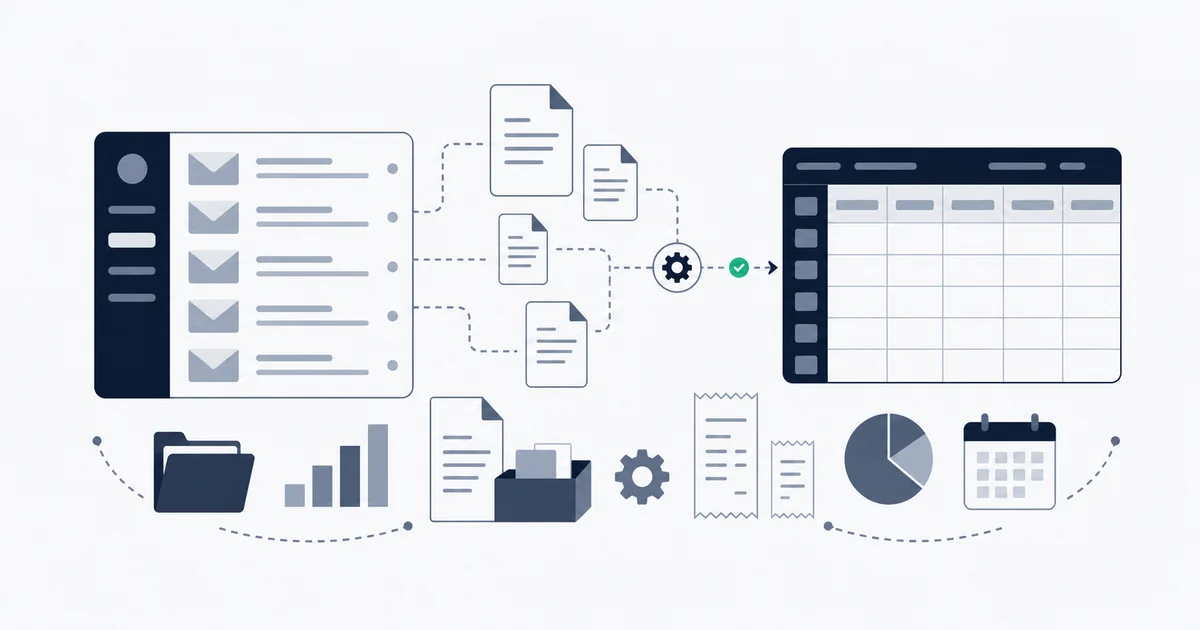
You already know Gmail is full of invoices. The AWS monthly bill, Stripe fees, GitHub seat charges, the vendor's quarterly statement, the telco billing for a line someone forgot to cancel. What you do not want is to click each one on the first of the month, download the PDF, rename it, file it, and try to remember which ones you already processed.
The companion piece on this site, Gmail Invoice Extraction: Complete Guide, covers the conceptual framing - why Gmail became the de facto invoice inbox, the three types of billing emails, and where manual workflows break. This guide is the hands-on follow-up. You get exact Gmail search operators, a working Apps Script you can paste in today, an honest look at what the Gmail API does and does not give you, and the cost math for deciding when a paid tool earns its subscription.
To extract invoices from Gmail automatically you have three tiers: a Gmail filter that labels billing email (about five minutes), an Apps Script that saves PDF attachments to Drive on a schedule (one to two hours, no field extraction), or a read-only Gmail API tool that extracts vendor, amount, tax, and date and syncs to your accounting system (roughly ten minutes). Pick the tier that matches your monthly volume.
Why manual Gmail extraction stops scaling around 50 invoices a month
Fifty invoices a month sounds manageable until you account for the actual time per invoice. Downloading a PDF from a Gmail search result, renaming it to your filing convention, placing it in the right folder, entering the fields into a spreadsheet or accounting tool, then reconciling the amount against a bank statement: that sequence runs 3 to 5 minutes per invoice under good conditions. At 50 invoices a month, that is 150 to 250 minutes, or 2.5 to 4 hours, of low-value work that repeats every month without end.
That estimate assumes clean, readable PDFs and data entry that never needs a second look. Reality adds exceptions. A vendor sends a credit note that needs matching against the original invoice. Another sends a corrected invoice in a follow-up thread, making the original invalid. A third sends a notice that the PDF is in the portal, not the email, and the portal link expires in seven days. Each exception adds time.
Where the hidden cost lives
The friction is not just the download - it is the disambiguation. Most Gmail inboxes contain both marketing emails and billing emails from the same vendors. A filter that catches "everything from shopify.com" sweeps in weekly newsletter digests and feature announcements alongside actual invoices. Someone has to look at each result and decide whether it is a real bill. At 50+ invoices a month, that disambiguation eats more time than the actual extraction.
The second hidden cost is error rates. Manual data entry into spreadsheets or accounting tools typically introduces errors on a small but non-trivial share of fields. Across 50 invoices with several fields each, even a low per-field error rate adds up to a handful of mistakes per month. Finding and correcting them takes longer than making them did. When an error flows into accounts payable and a reconciliation discrepancy shows up during close, tracing it back to the source can consume 30 to 60 minutes of focused attention per incident.
The 50-invoice threshold also marks where systematic gaps become expensive rather than annoying. Below that number, a missed invoice is recoverable with a focused search. Above it, a pattern gap - say, all invoices from a vendor that routes to the Promotions tab - accumulates unnoticed for months.
Native Gmail filters and forwarding to a dedicated archive address
Before writing any code, run through the native Gmail setup. For businesses under 30 invoices a month, this may be sufficient. For larger volumes, it becomes infrastructure for the automation layer above it.
Building your billing sender list
Start by searching your inbox for the past 90 days with this operator string:
has:attachment filename:pdf subject:(invoice OR receipt OR billing OR "payment confirmation") after:2026/01/01 -category:promotions
Export the sender addresses from the results. You are building a map of known billing senders. For each one, identify the exact sending address - not just the domain, because shopify.com sends marketing and billing from different addresses. Common patterns: billing@, invoices@, noreply@, invoice@, payments@, receipts@. The Stripe portal page documents the precise billing sender addresses for Stripe specifically, which is useful because their domain houses several sending identities.
Creating the filters
For each billing sender, create a filter under Gmail Settings. Use these criteria:
From:set to the specific billing address, not the whole domainHas attachmentchecked- Optional:
Subject includeswithinvoiceas a secondary guard
Apply two actions: add an Invoices label (with sub-labels per vendor if you want organized history), and do NOT check "Skip Inbox" unless you are comfortable missing payment-due notifications.
One filter worth creating even if you do nothing else:
from:(billing@stripe.com OR invoice@paypal.com OR noreply@aws.amazon.com OR billing@openai.com) has:attachment
This catches four of the most common SaaS billing senders in a single filter and applies your Invoices/SaaS label automatically.
Forwarding to a dedicated capture address
If you want a single inbox for all billing email regardless of which Google account originally received it, set up a dedicated address and create forwarding rules in each Gmail account. Go to Settings, Forwarding and POP/IMAP, Add a forwarding address, then paste your billing capture address. Gmail sends a verification email. Once verified, create a filter with your billing sender criteria and add the "Forward to" action.
Inbox Ledger issues a per-org forwarding address in the format {hex}@fw.inboxledger.app. Emails forwarded there get ingested, extracted, and routed to your configured destination without any additional steps on your side.
Two practical limits: forwarding rules apply to incoming email from the moment you create the rule. They do not retroactively forward historical email. For history, you need either a manual export or a tool that connects directly to each inbox via API. Also, Gmail forwarding adds headers that some spam filters flag. Whitelist the source domains at the receiving end if forwarded emails land in spam.
Google Apps Script - a working 40-line template
Apps Script is Google's built-in JavaScript environment for automating Gmail, Drive, Sheets, and the rest of the Workspace stack. For teams that want automation without a paid tool, it is the right middle tier. Here is a working script that finds invoice emails, saves PDF attachments to a dated Drive folder, and labels each processed thread so it is never duplicated.
The script
Paste this into script.google.com, authorize it with your Google account, replace the folder ID with one you created in Drive, and run it once to test.
const DRIVE_FOLDER_ID = 'YOUR_DRIVE_FOLDER_ID_HERE';
const QUERY = [
  'from:(billing@stripe.com OR invoice@paypal.com OR noreply@aws.amazon.com OR billing@openai.com)',
  'has:attachment filename:pdf',
  '-label:invoice-archived',
  'newer_than:7d',
].join(' ');
const ARCHIVE_LABEL = 'invoice-archived';

function archiveInvoicePDFs() {
  const folder = DriveApp.getFolderById(DRIVE_FOLDER_ID);
  const label = GmailApp.getUserLabelByName(ARCHIVE_LABEL) || GmailApp.createLabel(ARCHIVE_LABEL);
  const threads = GmailApp.search(QUERY, 0, 200);

  threads.forEach((thread) => {
    thread.getMessages().forEach((message) => {
      message
        .getAttachments({
          includeAttachments: true,
          includeInlineImages: false,
        })
        .forEach((att) => {
          if (att.getContentType() !== 'application/pdf') return;

          const dateStr = Utilities.formatDate(
            message.getDate(),
            Session.getScriptTimeZone(),
            'yyyy-MM-dd'
          );
          const domain = (message.getFrom().match(/@([\w.-]+)/) || [])[1] || 'unknown';
          const safeName = att.getName().replace(/[^a-zA-Z0-9._-]/g, '-');
          const filename = `${dateStr}_${domain}_${safeName}`;

          if (!folder.getFilesByName(filename).hasNext()) {
            folder.createFile(att.copyBlob()).setName(filename);
            Logger.log('Saved: ' + filename);
          }
        });
    });
    thread.addLabel(label);
  });
}
To run it automatically, open the Triggers panel in Apps Script (the alarm-clock icon in the sidebar), add a trigger for archiveInvoicePDFs, set it to Time-driven, Day timer, running overnight. From that point on, new invoice PDFs appear in your Drive folder each morning without any manual action.
What the script does and does not do
It saves PDF attachments. It does not extract data from them. You get a Drive folder of dated, named PDFs. The names include the sender domain and original filename, which gives you enough context for a visual scan, but not vendor name, invoice number, amount, or tax breakdown in a queryable format.
For under 30 invoices a month, that is often sufficient. You open each PDF, read the fields, and enter them manually. Above 30 invoices, that manual data entry step recreates the exact bottleneck you were trying to eliminate.
The script also does not handle HTML receipts with linked PDFs. Amazon Business sends receipts with a "Download Invoice" link inside the email body. The script saves whatever PDF attachment exists in the email - which may be an HTML-to-PDF render of the receipt email, not the actual invoice artifact. For vendors that use this pattern, you need a separate step. The Amazon Business portal page documents the exact flow for extracting real invoice PDFs from that platform.
Quota and failure risks
Three things eat Apps Script pipelines over time. First, execution quotas: consumer Google accounts get about 90 minutes of script execution per day, and a mailbox with tens of thousands of invoices can hit that ceiling on first run. The fix is chunking work with a stored cursor in Properties Service, which adds meaningful complexity to the template above.
Second, silent failures: if the script throws at 2 AM because a Drive folder ID changed or a quota reset mid-run, new invoices stop flowing into the archive. You find out weeks later when someone asks for a document. Add a try-catch that sends an error notification via MailApp.sendEmail() or accept that monitoring is entirely manual.
Third, there is no extraction: the script archives PDFs but returns no structured data. Turning it into a real invoice archive requires calling an AI extraction service from within the script, at which point you are rebuilding what dedicated invoice extraction tools already ship - with worse error handling.
Gmail API and OAuth for automated extraction
When you authorize a third-party tool with Gmail, it asks for one or more OAuth scopes. For invoice extraction, the correct scope is gmail.readonly: it lets a tool list messages, read headers and bodies, and download attachments, but cannot send, delete, or modify anything in your inbox. Any tool requesting a broader scope for this task is asking for more than it needs, so decline and ask why before granting access. For the full breakdown of the scope, the CASA security review, and how this compares to gmail.modify and mail.google.com, see the Gmail invoice parser guide, which owns the OAuth and security depth.
What a full API-based extractor adds on top
A connected extractor using the Gmail API adds three things that the filter or Apps Script paths cannot provide.
The first is a historical sweep. Immediately after OAuth connection, the service walks backward through your mailbox using users.messages.list, filtered by your preferred history window. Most teams start with 90 days. The sweep runs in the background. Every message matching billing heuristics - sender patterns, subject keywords, attachment signals - gets pulled, its PDF stored, and its fields extracted.
The second is incremental sync. After the initial sweep, the service subscribes to Gmail's History API, which delivers a change notification every time something happens in your mailbox. New invoices get processed within seconds of arriving. No cron job, no poll interval, no manual trigger.
The third is AI-powered extraction rather than OCR. Each PDF goes through a model that reads the document as a whole and returns structured fields: vendor name (with aliases resolved, so "AMZN Mktp" and "Amazon.com Services LLC" both map to Amazon), invoice number, issue and due dates, subtotal, tax by rate, total, currency, and line items where present. Our AI processing feature page covers edge cases - multi-currency, credit notes, partial refunds, prorations. This is where an API-based extractor separates from an Apps Script: a regex parser breaks the week a vendor updates their PDF template; a model-based extractor keeps working because it is reading document semantics, not fixed string patterns.
Setup decisions that change which method you pick
Gmail has several failure modes that quietly eat invoice coverage - the Promotions tab classifier, multi-account fan-in, thermal receipt scans, and thread-buried corrected invoices. The canonical, ranked breakdown of all of them lives in the Gmail invoice extraction complete guide. Here we cover only the two that directly change which setup tier you should choose.
Forwarding rules apply to future email only
If your plan is forwarding rules to a dedicated capture address, remember that forwarding takes effect from the moment you create the rule. It does not retroactively forward historical email. That single property decides your setup: forwarding gets your ongoing invoices flowing, but you still need a separate one-time pull for history, either a manual export or an API tool that connects directly to each inbox. If a complete historical archive matters to you, forwarding alone is not the tier to stop at.
Each inbox needs its own OAuth connection
The average business has three to five Gmail-connected inboxes that matter for billing: the founder's original Gmail used to sign up for early vendors, the company Workspace account, a shared accounts-payable address, possibly a separate inbox for one department. Each is a separate OAuth connection. A process that only reads one inbox misses the others entirely. On Inbox Ledger, the Starter plan includes 2 connected inboxes, and higher plans add more, so match your plan to how many billing inboxes you actually run.
Map your invoices to their source inbox before building the automation. Ask which email address was used to register with each vendor. The answer often reveals that AWS bills go to a personal Gmail, Google Workspace bills go to the primary company account, and Stripe settlements go to a finance@ alias that no one set up extraction for. If your billing spans more than one account, that pushes you toward an API-based tool that connects each inbox and merges the output, rather than per-inbox scripts no one cross-checks.
When automation pays for itself - the real math
The case for a paid extraction tool is concrete when you run the numbers rather than arguing in the abstract.
As an illustration, assume 4 minutes per invoice and a fully-loaded labor rate of $40/hour: that works out to about $2.67 per invoice. At 50 invoices a month, that is roughly $133 per month in direct labor cost. Add error correction time, say 20 minutes per month tracking down data entry mistakes, for another $13 or so. Total estimated direct cost of manual processing at 50 invoices per month: roughly $147. Plug in your own rate and time-per-invoice to get a number that fits your situation.
A mid-tier invoice extraction subscription costs $30 to $60 per month for a business at that volume. The savings at 50 invoices are $87 to $117 per month in direct labor, plus the harder-to-quantify value of removing data entry error rates from your books.
The crossover point where automation is clearly worth it, even at modest labor rates, is around 20 to 30 invoices a month. Below that threshold, the time savings do not cover a typical subscription cost. Above it, manual processing gets progressively more expensive relative to automation as volume compounds.
When errors cost more than time
That calculation treats errors as a time problem. For some businesses, errors have direct financial consequences. Any business claiming VAT or input tax credits needs correct tax amounts on invoices; a wrong tax figure affects the claim amount directly. A duplicate invoice payment triggered by a data entry error costs the invoice amount plus the time to chase a refund. An amount error that flows into accounts payable requires reconciliation when the bank statement does not match - at $40/hour, one 45-minute reconciliation trace costs $30, which on its own justifies automation for many businesses at 100 invoices per month.
IRS retention requirements add a third variable
The IRS requires retaining records supporting tax returns for at least three years from the filing date, extended to six years for income underreported by more than 25 percent, and without limit for fraud cases, per IRS Publication 583. Manual archives - Drive folders of PDFs, labeled Gmail threads, spreadsheets with invoice data - are technically sufficient if they are complete. In practice, they rarely are. The Promotions tab gap, the multi-account gaps, the missed threaded corrections: all create holes that manual processes do not catch because there is no monitoring layer flagging what is missing.
A tool that connects via API, runs a completeness check against your known vendor list, and flags missing invoices provides a qualitatively different level of assurance than a folder someone curates by hand.
Choosing the right tier for your volume
An honest decision framework, since different situations call for different answers.
Under 20 invoices per month, single inbox, predictable vendor set: Gmail filters plus a monthly manual download is the right answer. An Apps Script backup to Drive adds 90 minutes of setup and then runs automatically. A paid tool does not justify its cost at this volume.
20 to 75 invoices per month, one or two inboxes, a mix of attachment and HTML-linked invoices: Apps Script for attachment capture, a documented manual process for HTML-receipt vendors, and a spreadsheet log. This takes more discipline than a paid tool but costs nothing. The question to answer honestly: is the spreadsheet data entry step a worthwhile use of anyone's time at 60+ invoices per month?
75+ invoices per month, multiple inboxes, a bookkeeper or accountant who needs structured data: A connected API-based tool is the clear choice. The labor cost of manual processing at this volume exceeds any reasonable subscription cost. The setup is a ten-minute OAuth connection per inbox plus a one-time configuration of extraction destinations.
Any business spanning multiple inboxes or multiple entities: API-based, full stop. Filters and Apps Script do not compose cleanly across sources. Multiple scripts means multiple triggers, multiple failure modes, and multiple archives that no one is cross-checking for completeness.
For broader tooling comparisons in this category, our alternatives hub compares available options across extraction accuracy, pricing, integration depth, and supported inbox types. For Google Workspace admins managing invoice extraction across a team, the Google Workspace admin documentation covers the domain-wide delegation controls and retention policies you need to configure at the account level.
The Gmail setup is not complicated. The failure modes are predictable. The math is not subtle once you count actual labor time. The main thing that keeps businesses doing manual invoice extraction longer than they should is the same inertia that keeps any repetitive finance task manual: it works well enough today, and setting up something better requires one afternoon of focused attention that never quite makes it onto the calendar.
Pick the tier that fits your current volume. Set it up this week. Check whether your vendor coverage is complete after the first 30 days. Adjust from there.