QuickBooks Receipt Scanner: Capture Receipts the Right Way
How to scan and capture receipts into QuickBooks Online using the native Receipts inbox, the mobile app snap, and Bank Feeds, plus where each one falls short and the reconciliation-first shortcut.

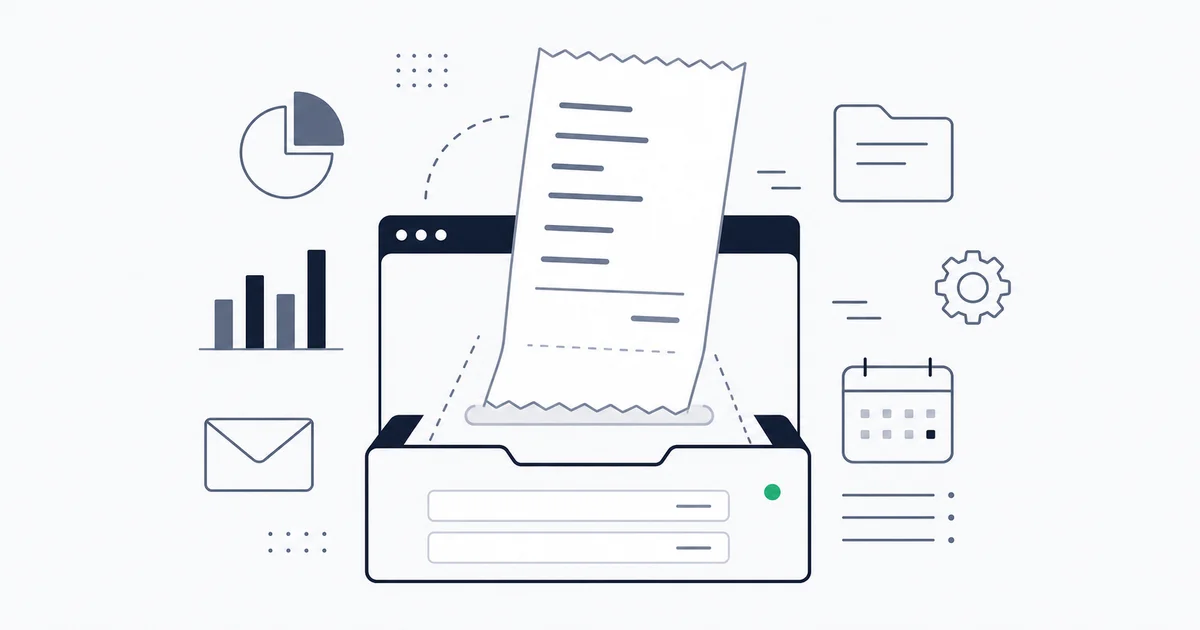
You can scan a receipt into QuickBooks Online three ways, and all of them work. Snap it with the QuickBooks mobile app and it uploads to the Receipts inbox. Forward it to your company's unique Receipts email address and it lands in the same place. Drag a saved PDF or image into the Receipts upload area in the browser. In each case QuickBooks runs OCR on the document, pulls the vendor, date, and total, and parks the result as an unreviewed row until you confirm the category and either create an expense or match it to a bank transaction. The capture step is genuinely good. Where the native scanner runs out of room is everything after capture: it reads header fields but not line items, it captures one source at a time, and every document still lands in a review queue that needs a human to assign a category.
This guide covers the three native QuickBooks receipt-capture paths in detail, the real limits of each, and the reconciliation-first shortcut for teams whose receipts arrive faster than they can clear the inbox. It is specifically about scanning receipts into QuickBooks. If your problem is unpaid vendor invoices that need to post as bills, that is a different workflow, covered separately.
The three native QuickBooks receipt-capture paths
QuickBooks Online does not have one receipt scanner. It has three on-ramps that all empty into the same Receipts inbox under the Banking (or Transactions) menu. Knowing which on-ramp fits which moment of capture is most of the battle.
Path 1: The QuickBooks mobile app snap
The path most people mean by "QuickBooks receipt scanner." Open the QuickBooks Online mobile app, tap the menu, choose the receipt camera, and photograph the receipt. The app uploads the image, runs OCR, and creates a row in the Receipts inbox with the vendor, date, and amount pre-filled for you to confirm.
This is the right tool for paper. A taxi receipt, a hardware-store slip, a restaurant check: photograph it at the point of spend while the thermal ink is still readable, and it is in QuickBooks before you have left the parking lot. The perspective correction is decent, and capture-at-source beats any retrospective scan because faded thermal paper is the one thing no OCR engine recovers.
Where it stops: the mobile app is a capture tool, not an expense-report engine. It records your own card spend well. It does not run a submit-and-approve reimbursement workflow for a team of employees, and it captures one photo, one receipt. Two receipts in one frame become one document, and one of them is lost.
Path 2: The Receipts email forwarding address
Every QuickBooks Online company gets a unique forwarding address for receipts. You set it up under Banking (or Transactions), then Receipts, by registering the address you forward from in the Receipts settings, which adds it to an approved-senders list. Anything forwarded from an approved address routes to the Receipts inbox and gets the same OCR treatment as a mobile snap.
This is the path for receipts that arrive in email. A confirmation from an online vendor, a SaaS charge receipt, a ride-share emailed slip: forward it once and it is captured. For a low volume, it is the lightest-touch route there is.
Two limits bite quickly. First, QuickBooks pulls the attachment from the forwarded email, not the email body. A receipt that exists only as inline HTML, with no attached PDF, often does not capture, and an increasing share of vendor receipts are exactly that: a styled HTML email with the amount in the body and nothing attached. Second, the approved-senders list is strict by design. Forward from an address you have not registered and QuickBooks silently ignores it. Most "my forwarded receipts are not showing up" problems trace to one of these two causes.
Path 3: Direct browser upload
The least glamorous and most reliable route. Inside QuickBooks Online on the web, open the Receipts area and drag files in, or browse to them. It accepts PDF, JPEG, JPG, GIF, and PNG up to under 20 MB each, reads one receipt per image, and drops each into the same review queue.
Use this for receipts you have already saved to disk, scanned batches, or anything the forwarder choked on (the inline-HTML receipt you printed to PDF, for instance). It is the fallback that always works, at the cost of being fully manual.
All three paths end in the same Receipts inbox, so you can mix them freely. A practical setup: mobile snap for paper at the point of spend, forwarding for clean email attachments, and browser upload as the catch-all for anything that did not capture cleanly. The receipts converge in one review queue regardless of how they got there.
What the QuickBooks receipt scanner does not do
The capture is solid. The gap is everything QuickBooks asks you to do once the document is sitting in the inbox. Three limits show up consistently.
It reads header fields, not line items. The OCR extracts vendor, date, total, and sometimes tax. It does not split a receipt into structured lines inside QuickBooks. Buy a monitor and a box of cables on one receipt and QuickBooks records the single total, not two lines mapped to two accounts. The image stays attached, so the detail is never lost, but any per-line treatment (project coding, a department allocation, mixed categories on one slip) is a manual split you perform after the fact. For a business whose receipts are mostly single-category card purchases, this never matters. For one running project accounting or cost centers, it is the wall you hit first.
Every receipt still needs manual categorization. The scanner fills the vendor and amount; it does not assign a GL account, a class, a location, or a project. Each captured receipt lands with a "Select category" dropdown you have to touch. At ten receipts a month that is nothing. At three hundred it is a standing weekly chore in the Receipts tab, doing categorization that a rule could apply at the moment of capture. The native inbox has no rule engine for receipts that maps "anything from Uber to Travel" automatically; you confirm each one.
It captures one source at a time. The mobile app needs you holding a phone. The forwarder needs you to forward. The upload needs you at a keyboard. None of them watch your inbox continuously and pull receipts on their own. So the failure mode is not bad extraction; it is the receipt you never got around to forwarding, which means it never enters QuickBooks and surfaces as a mystery card charge at month-end with no document behind it.
The Receipts inbox is a queue, not an archive. A document sitting unreviewed is not yet an expense and is not yet matched to anything. If nobody clears the queue, you get the worst of both worlds: receipts captured but not posted, and a bank feed full of charges with no linked source document. Clearing the queue is the work the scanner does not do for you.
Bank Feeds: match receipts to the charge
There is a fourth piece worth understanding, because it is where receipts and money meet. QuickBooks Bank Feeds import every card charge and ACH debit from your connected bank. A captured receipt does not create a transaction by itself; it sits in the Receipts inbox until you either create an expense from it or match it to the bank line that represents the same purchase.
When it works, this is the clean version of receipt scanning: the charge arrives via the feed, the receipt arrives via the snap or forward, and you pair the two so the transaction in your books has its source document attached. That linked pair (bank line plus receipt) is what an auditor actually wants to see.
The catch is that the matching is manual and approximate. The feed shows SQ *BLUE BOTTLE and your receipt says Blue Bottle Coffee; QuickBooks suggests the match sometimes and misses it often, especially when the descriptor is an abbreviated processor string. Two charges for the same amount on the same day are a coin flip for which receipt pairs to which line. And a receipt you forgot to capture leaves a bank charge with nothing to attach, which is the gap that quietly accumulates into an incomplete audit trail. Bank Feeds make the match possible; they do not make it automatic or reliable at volume.
The reconciliation-first shortcut
Step back and the native flow has a shape: capture a receipt, drop it in a queue, hand-categorize it, and manually pair it to a bank charge. The scanner owns the first step and leaves you the other three. A reconciliation-first capture flow inverts the order: it reads the receipt from wherever it lives, extracts the full structure including line items, and matches it against the bank transaction before it ever becomes a manual queue item.
This is what Inbox Ledger does, and the design is built around the steps QuickBooks leaves manual.
- Capture from any source, not just one at a time. Connect Gmail, Outlook, or IMAP with read-only OAuth and the inbox is watched continuously. Email attachments, inline HTML receipts (the kind the QuickBooks forwarder skips), and forwarded receipts to a dedicated capture address all get pulled, plus direct upload for paper you have scanned. You stop relying on remembering to forward each one. For the broader picture of inbox-based capture, see the Gmail invoice extraction guide.
- Structured extraction with line items. Every receipt is read by an AI-powered model that pulls vendor (normalized, so
SQ *BLUE BOTTLEandBlue Bottle Coffeecollapse to one vendor), date, tax by rate, total, and the individual line items, not just the header total. The multi-category receipt that QuickBooks records as one line comes through with its lines intact. - Match against the bank transaction first. Statements and bank transactions captured from the inbox or uploaded are matched against the extracted receipts, with confidence thresholds that auto-clear the high-confidence pairs and route only the ambiguous ones to a person. That is the reconciliation step the native Receipts inbox cannot do, because it only knows about documents, not about whether each one ties to a cleared charge. The mechanics of that matching are the same ones described in what invoice reconciliation is.
- Then export to QuickBooks, clean. Reconciled, categorized records export to QuickBooks Online (or Xero, Google Sheets, Drive), so what lands in your books is already matched and coded rather than sitting in a review queue. For how the QuickBooks connection itself is wired, see integrate with QuickBooks Online.
Inbox Ledger is not an accounts-payable platform and not a general ledger. It captures documents, extracts their structure, reconciles them against transactions, and exports the result. The point is to do the three steps the QuickBooks receipt scanner leaves to you, so the scanner's strength (fast capture) is not undone by the manual tail behind it.
QuickBooks native vs reconciliation-first, side by side
| Manual | Automated with Inbox Ledger |
|---|---|
| Snap, forward, or upload each receipt one at a time | Inbox watched continuously plus upload; nothing to remember |
| OCR pulls vendor, date, total; no structured line items | Extraction pulls vendor, tax, total, and individual line items |
| Inline HTML receipts with no attachment often fail to capture | Reads email attachments and inline HTML receipt bodies alike |
| Every receipt lands in a queue needing a manual category | Categories applied per rule at capture, not in a review queue |
| Match to the bank charge by hand, descriptor by descriptor | Receipts matched to bank transactions automatically, exceptions flagged |
| Forgotten receipts never enter QuickBooks at all | Every emailed receipt captured the moment it arrives |
When the native QuickBooks scanner is genuinely enough
Automation is not always the answer, and the native receipt scanner is a real tool, not a placeholder. If you are a freelancer or a microbusiness with a low volume of single-category card receipts, the mobile snap plus the Receipts inbox covers you completely. It is free with every QuickBooks Online plan, the setup is two minutes, and keeping everything in one app has real value. The ten or fifteen minutes a week it costs to clear the queue is cheaper than any subscription until your volume climbs.
The signals that you have outgrown it are specific. Receipts that routinely carry multiple expense categories on one slip and need per-line splits. Email receipts arriving as inline HTML that the forwarder will not capture. A monthly volume past roughly fifty documents where the manual categorization becomes a standing chore. Or more than one person needing to feed receipts into the same books, which the native flow handles awkwardly. Past those lines, the manual tail behind the scanner costs more than the capture saves. For a wider survey of capture tools across both paper and email, the best free receipt scanner app roundup covers where each one fits.
One more boundary worth drawing. This page is about receipts, the proof of money already spent. If your real problem is unpaid vendor invoices with net terms that need to post as bills into accounts payable, that is a separate workflow with its own mechanics around vendor refs, due dates, and AP aging. It is covered end to end in email invoices to QuickBooks automatically. Receipts go in as receipts; unpaid invoices go in as bills, and conflating the two is the most common reason a QuickBooks file gets messy.
Closing
The QuickBooks receipt scanner is three capture paths feeding one inbox, and the capture itself is good. Snap paper with the mobile app, forward email attachments to your company's Receipts address, drag saved files into the browser, and the OCR reliably pulls the header fields. What the scanner does not do is the work after capture: it does not extract line items, it does not categorize, and it does not match the receipt to the bank charge for you. For low volumes of simple receipts, clearing that manual tail by hand is perfectly reasonable. Past a certain volume, or once your receipts carry multiple categories and arrive as inline HTML, a reconciliation-first flow that captures from any source, extracts the full structure, and matches against the transaction before it reaches QuickBooks turns the monthly inbox-clearing chore back into a short review of the exceptions. Decide by your actual volume and the shape of your receipts, not by which tool markets the loudest snap.