Receipt Organizer: Which System Actually Fits You
A receipt organizer is the system that captures, stores, and retrieves your receipts. Here are the five types, an honest comparison, and how to pick the one that fits your volume and sources.

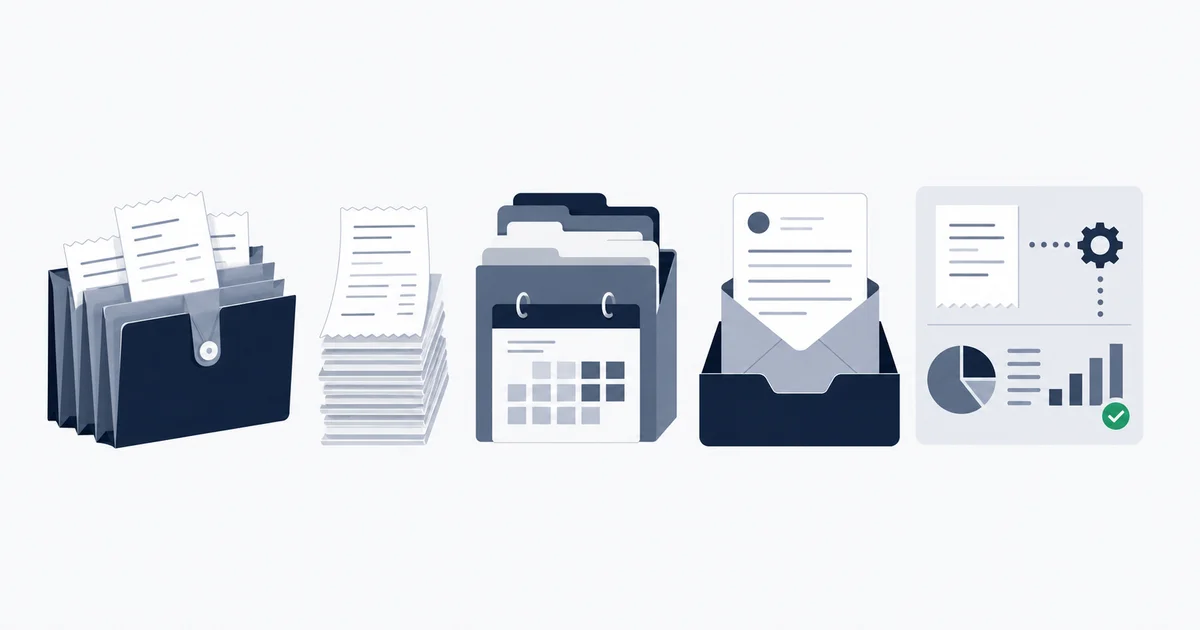
A receipt organizer is the system you use to capture, store, categorize, and later find your receipts. It is not a single app and it is not just scanning; it is the whole loop from "a receipt exists" to "I can produce it on demand." There are five common types: a paper folder, a spreadsheet, a receipt-scanner app, your accounting software, and an email-capture system. Which one fits you comes down to three numbers: how many receipts you handle a month, how many sources they arrive from, and how many people touch them. Low volume from one inbox? A spreadsheet wins. High volume scattered across inboxes, cards, and portals? You want a system that captures and files without you. This page is about choosing the system, not the step-by-step of running it. For the how-to, I link sideways below.
What a receipt organizer is
Most people hear "receipt organizer" and picture an app that photographs a receipt. That is one stage, capture, and it is the stage that gets all the marketing because it is the visible one. The organizer is the system around it: where the file lands, how it is named, what category it carries, and whether you can retrieve it months later without a hunt.
I think of it as four jobs the system has to do, in order:
- Capture. Get the receipt out of the wild (an inbox, a card statement, a piece of thermal paper) and into the system. This is where an OCR receipt scanner earns its keep: optical character recognition turns the pixels into searchable text so a year later you can search "Office Depot" and actually find it.
- Store. Keep the document and its data together. A receipt without its source image is a problem at audit time.
- Categorize. Tag it the way it will appear on your books or tax return, so the work is done once instead of every quarter.
- Retrieve. Find any receipt by vendor, date, amount, or category in seconds, not by scrolling a folder.
A tool that nails capture but has no real storage or retrieval is a scanner, not an organizer. The reason this distinction matters is practical: people buy a great scanner app, capture beautifully for a month, and still cannot answer "how much did we spend on software this year" because the system around the scan does not exist. The organizer is the whole loop, and the weakest of the four jobs sets the ceiling.
The five ways to organize receipts
Here are the five systems people actually use, with honest pros and cons. I am deliberately not teaching the step-by-step of running each one. The detailed how-to lives in the best way to organize receipts for personal flows and how to organize business receipts for the audit-ready business version. This is the "which system" view.
1. The paper folder
A 13-pocket accordion file, one pocket per month, receipts filed the day they arrive. It costs about $20 and needs zero subscriptions.
- Wins for: a solo operator under roughly 30 receipts a month, cash-heavy micro-businesses where paper is the only record, and anyone who distrusts software for tax documents.
- Breaks at: around 50 receipts a month, where the filing eats real time and "did I pay this in March or April" becomes a painful search. Thermal receipts also fade to blank within a few years, so paper alone is a slow data-loss machine.
2. The spreadsheet
A logged row per receipt (vendor, date, amount, tax, category) plus the file dropped in a dated folder. The most underrated organizer on this list because it is free and total control.
- Wins for: low, single-source volume where you are disciplined. A few dozen receipts a month from one inbox, logged consistently, beats most apps on cost and flexibility.
- Breaks at: the moment logging becomes a chore you skip. The spreadsheet has no capture of its own, so every receipt is a manual entry. Miss a week and the gaps are invisible until tax time.
3. The receipt-scanner app
A phone app (or a desktop OCR receipt scanner) that photographs a receipt, runs OCR, and stores a searchable PDF. Strong on the capture job specifically.
- Wins for: ad-hoc paper receipts taken on the go, the coffee before a meeting, the supply-run stack of thermal paper. Same-day capture is its real value, because that is what beats fade.
- Breaks at: anything that did not arrive as paper. An emailed invoice, a receipt behind a link, a charge in a vendor portal, none of those are things you point a camera at. The free tiers also cap monthly scans, and a scanner app is rarely a full organizer (storage and retrieval are usually thin). I compared the honest free-tier limits in the best free receipt scanner app guide.
4. Accounting software
QuickBooks Online, Xero, and FreshBooks all attach receipts to transactions. The right answer when you already live in one of them.
- Wins for: anyone already paying for that platform. Receipts sitting next to their transactions removes the "which system is authoritative" question and makes reconciliation mostly automatic. Xero even accepts email-forwarded receipts.
- Breaks at: batch volume (imports are usually one at a time), messy thermal paper, and local vendors the built-in extractor was never trained on. And paying for one of these just to organize receipts, when you do not otherwise need the ledger, is overkill.
5. The email-capture system
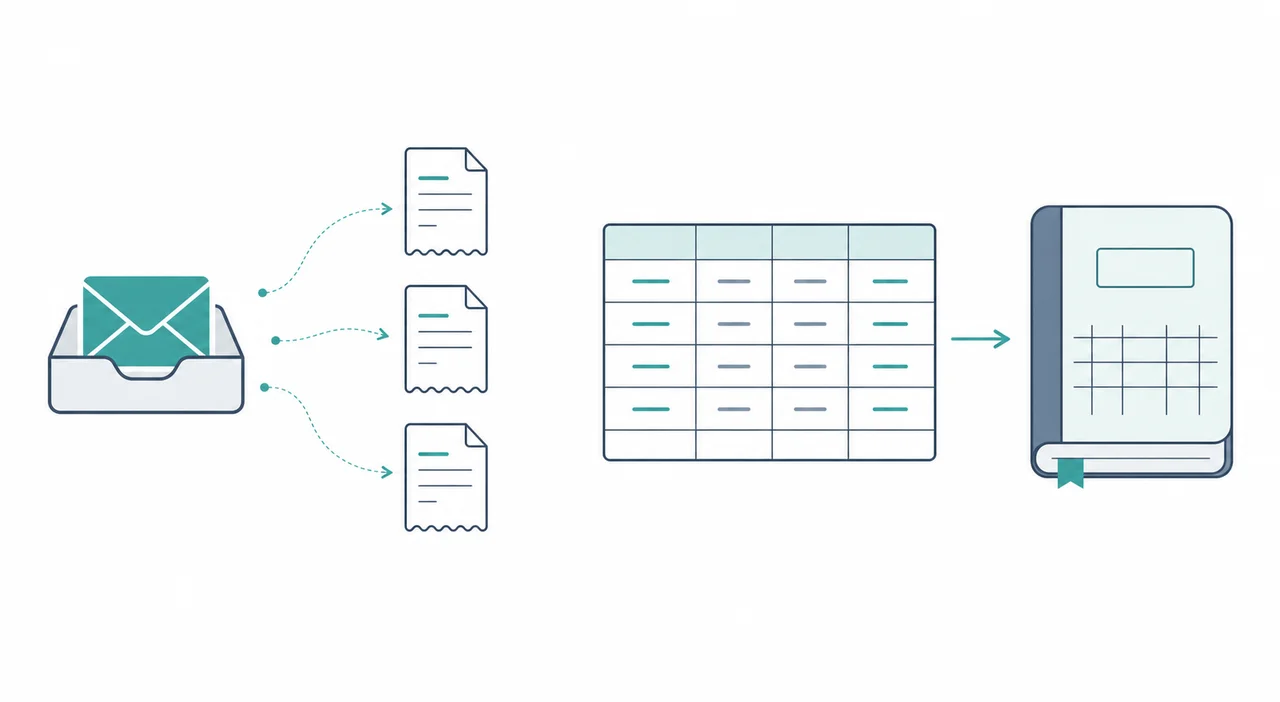
A tool that connects to your inbox, reads the receipts and invoices that already arrive there, and extracts each one's data automatically. The receipt is organized before you have even opened the email.
- Wins for: the common modern reality, where most receipts arrive as email. High volume, multiple inboxes, and "I do not want to touch each one" all point here. Capture happens with no per-receipt effort.
- Breaks at: receipts that never touch email (a cash lunch, a paper supply run). Those still need a scanner or chat-photo path feeding the same archive, which is why most real businesses run a hybrid.
How the five compare
Scored on the five jobs that actually decide whether an organizer works: capture coverage (does it catch receipts from where they really arrive), search and retrieval, tax-readiness, multi-source handling, and ongoing effort.
| System | Capture coverage | Search / retrieval | Tax-readiness | Multi-source | Ongoing effort |
|---|---|---|---|---|---|
| Paper folder | Paper only | Manual flip-through | OK if filed same day; thermal fades | Single channel | High (file every receipt by hand) |
| Spreadsheet | Whatever you log | Filter and sort, good | Good if you log tax + amount | Any source, but all manual | High (every row typed) |
| Receipt-scanner app | Paper and screenshots | OCR text search | Good if the image is complete | One channel at a time | Medium (scan each receipt) |
| Accounting software | Photos + some email forward | Strong inside the ledger | Strong (tied to the transaction) | Limited; batch is one-at-a-time | Medium (capture, then match) |
| Email-capture system | Inbox receipts automatically | Vendor / date / amount / line-item | Strong (document kept with data) | Multiple inboxes at once | Low (runs in the background) |
No system scores top on every column, which is the honest point. The paper folder and the spreadsheet trade automation for control and zero cost. The scanner app owns paper capture and nothing else. Accounting software is strong once a receipt is inside it but weak at getting volume in. The email-capture system trades away paper capture for hands-off coverage of everything that arrives by email. Pick by which column is your actual bottleneck.
Which receipt organizer fits you
The decision is mostly three numbers. Find your row.
- Under ~30 receipts/month, one source, just you. A paper folder or a spreadsheet. Do not pay for software. Five to ten minutes of monthly logging is cheaper than a subscription, and you keep full control. The spreadsheet wins if you want search; the folder wins if your receipts are mostly cash and paper.
- 30 to 50/month, one or two sources, just you. A receipt-scanner app for paper, plus a spreadsheet or your accounting software's attachment feature for the rest. You are at the volume where typing every row starts to slip, so let OCR carry the capture.
- 50+/month, multiple sources, or any team. An email-capture system as the backbone, with a scanner or chat-photo path for the paper minority, all feeding one archive. This is the volume where manual filing quietly loses receipts, and the cost of a missed deductible receipt exceeds the cost of automating.
- Already living in QuickBooks or Xero, moderate volume. Use the built-in attachment first. Add a capture layer in front only when the one-at-a-time import becomes the bottleneck or receipts scatter across inboxes the ledger cannot reach.
The trap to avoid: choosing by volume alone. A solo consultant with 25 receipts but five different sources (two inboxes, a card, a portal, and paper) has a sources problem, not a volume problem, and will lose receipts in a single-channel system no matter how low the count is. Count your sources before you count your receipts.
The email-capture angle: an inbox that is already a receipt organizer
Here is the part most organizer round-ups skip, and it is the one I care about because it removes the manual stage entirely. Most of your receipts already live in your email. The order confirmations, the SaaS invoices, the supplier bills, they arrive in Gmail or Outlook and sit there. An email-capture system treats the inbox itself as the organizer.
This is what Inbox Ledger does, and I want to be exact about it so there is no overselling. You connect Gmail, Outlook, or an IMAP inbox (read-only, no passwords stored). The system reads the receipts and invoices already there and extracts each one's structured data with an AI-powered pipeline: vendor name (normalized, so AMZN Mktp and Amazon.com collapse to one vendor), date, amount, tax, currency, and line items where the document has them. The original document stays attached to its data, so the four jobs (capture, store, categorize, retrieve) are all handled without you filing anything. From there it reconciles against bank statements and exports the clean records to QuickBooks, Xero, Google Sheets, Drive, or OneDrive, so the same receipt data lands in your books without re-keying.
The honest boundary: this organizes what arrives by email (and, for screen-bound receipts, via the browser extension). It does not photograph the cash lunch for you. That paper minority still needs a scanner or a forwarded photo, both of which can feed the same archive. The value is that the email majority, which for most businesses is 70 to 85 percent of volume, organizes itself. For where the receipt data goes next, see how to track business expenses; for the tax-specific capture rules, scanning receipts for taxes.
Keeping it tax-ready
Whatever organizer you pick, the record has to survive an audit, which means two things: the stored copy is complete (vendor, date, amount, tax all legible) and you can retrieve it on demand. OCR helps you find a receipt; it does not make an incomplete one valid. A scan that crops off the total is not a record.
On retention, the IRS guidance is to keep records that support an item of income, deduction, or credit until the period of limitations for that return runs out. That is generally three years from the date you filed, but it stretches to six years if you understate income by more than 25 percent, and there is no limit at all for a fraudulent or unfiled return. Because of those exceptions, many businesses keep receipts for at least seven years. The IRS page How long should I keep records? has the current rules. Any organizer you choose should make a seven-year archive trivial to keep and trivial to search, which is exactly where paper and a fading shoebox fall down.
A receipt organizer is a system, not an app, and the five types are not competing for one crown. The paper folder and the spreadsheet win on cost and control at low, single-source volume. The scanner app owns paper capture. Accounting software wins once a receipt is inside it. The email-capture system wins when receipts arrive by email at volume and you want the filing to disappear. Count your monthly volume, count your sources, count the people involved, and the right organizer picks itself. The one mistake that costs real money is choosing a single-channel system when your receipts arrive from five places, because the receipts the system never sees are the deductions you cannot prove.