AP Automation for QuickBooks and Xero: Automate Bills on the Platform You Already Use
How to automate accounts payable inside QuickBooks Online and Xero specifically -- bill capture, coding, approval, and payment -- plus where each platform stops and what to add.

Reviewed by Dmitry Suv, Founder & Engineer · 2026-06-18
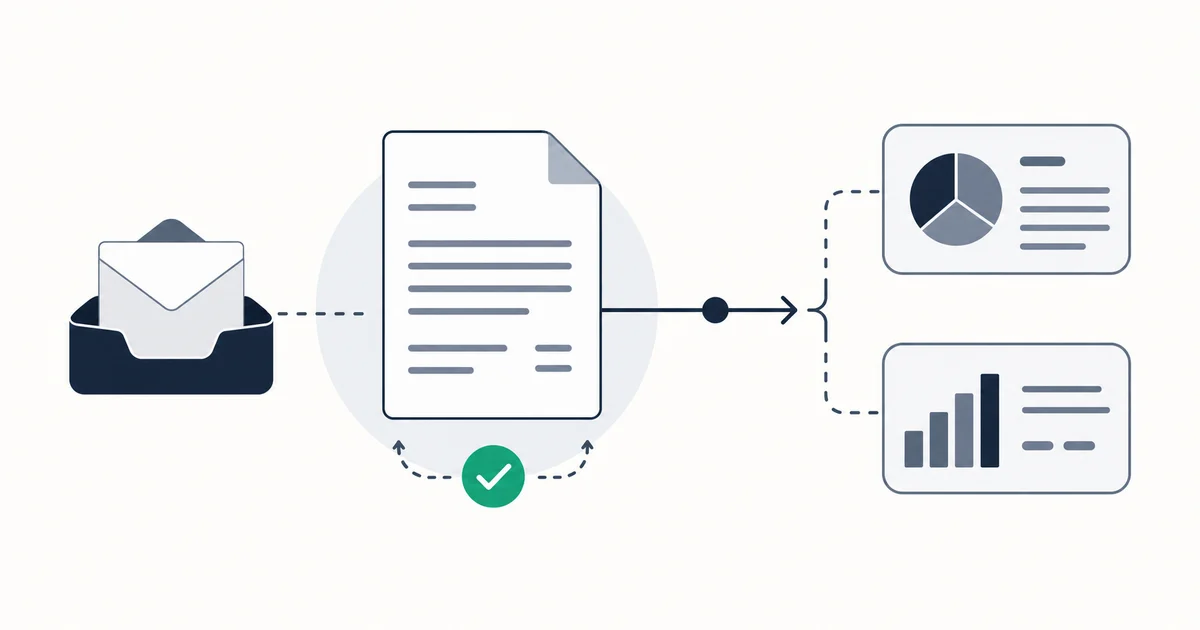
If you run QuickBooks Online or Xero, you already own most of an AP system. The question is not which standalone tool to buy. It is how far the platform you already pay for takes you, where it stops, and what to bolt on at the seam. This guide walks the full AP loop inside each platform specifically: capture the bill, code it, approve it, sync it, pay it. Then it draws the line where native automation runs out (no purchase-order matching, thin duplicate detection, limited approval routing) and what a reconciliation-first capture layer adds in front.
This is the platform-specific how-to. If you want the buyer's comparison of standalone tools, that lives in best AP automation software comparison. If you want the platform-agnostic AP playbook (intake standards, fraud controls, segregation of duties), that is accounts payable best practices. This page answers a narrower question: automate AP on the system I already use.
The AP loop, and which steps each platform owns
Every AP cycle is the same five steps regardless of platform: capture the bill, code it to the right account, approve it, sync it to the ledger, and pay it. The difference between QuickBooks and Xero is which of those steps each one automates well out of the box, and which ones quietly stay manual.
Both platforms are strong on the last two steps. Once a bill exists in the ledger as a payable, coding, payment, and reconciliation are well-handled. The weak link in both is the front: getting the bill in cleanly, catching duplicates, and matching it against what you actually ordered before money moves. That is the part worth understanding platform by platform.
QuickBooks Online: automating AP step by step
Capture: the Receipts inbox and forwarding address
QuickBooks Online has a Receipts feature that gives each company a dedicated forwarding email address. Forward a bill or receipt to it (or upload a file, or snap it in the mobile app) and QuickBooks Online reads the document, pulls the vendor, date, and amount, and stages it as a draft transaction for you to review and either expense or turn into a Bill. Tell your vendors to send to that address, or set a forwarding rule from your AP inbox, and capture starts running on its own.
The limit is that this is one address and a review queue. It captures what reaches it. Invoices that land in a salesperson's personal inbox, arrive as a link inside an HTML email, or sit behind a vendor portal never hit the Receipts queue unless someone forwards them by hand.
Code: Bills against an AP account
In QuickBooks, a vendor invoice you intend to pay later is a Bill. Under the hood it references the vendor and an accounts payable account, exactly the same structure the QuickBooks API exposes as vendorRef and apAccountRef. You assign the expense account, class, or location, and if you bought something and later returned it or overpaid, you record a vendor credit that nets against what you owe. Memorized rules and prior history mean QuickBooks Online pre-fills the coding for vendors it has seen, so recurring bills need a glance, not full entry.
Approve: roles on lower plans, a real workflow only on Advanced
Here is the honest ceiling. A built-in, multi-step bill approval workflow with assigned approvers and an audit trail is a QuickBooks Online Advanced capability. On Simple Start, Essentials, and Plus you control AP through user roles and permissions (who can enter bills, who can pay them), but you do not get a formal approve-then-pay queue. If your policy is "department manager approves under $2,500, finance manager above it," lower-plan QuickBooks Online cannot enforce that natively. You either move to Advanced or run the approval gate in a layer before the bill is created.
Sync and pay: QuickBooks Bill Pay
Payment is where native QuickBooks Online is genuinely strong. QuickBooks Bill Pay lets you pay a Bill by ACH or mailed check without leaving QuickBooks, and the payment posts straight against the bill, so the payable clears and there is nothing to re-key. Because capture, coding, and payment all live in the same ledger, the bank feed reconciles the payment cleanly at period end. For the cash flow and timing decisions around when to pay (early-pay discounts, DPO targets), see accounts payable best practices.
QuickBooks warns you when you enter a Bill with a number it has already seen for the same vendor. That catches the exact-duplicate case. It does not catch the same invoice arriving with a different number, a re-sent invoice with a suffix, or a copy forwarded to a different inbox and entered by a different person. Duplicate detection across those variations is one of the three places native AP stops.
Xero: automating AP step by step
Capture: Hubdoc
Xero's native capture tool is Hubdoc, included with most Xero plans. Hubdoc gives you an upload address and a forwarding email. Send it a bill and it reads the document, extracts the supplier, date, and total, and creates a draft bill in Xero with the source PDF attached to the transaction. That attachment matters: Xero keeps the original document on the bill, which is exactly what an auditor wants to see. Hubdoc can also fetch recurring statements from some suppliers directly, so a few vendors never need to email you at all.
Same structural limit as QuickBooks Online's Receipts: Hubdoc captures what is forwarded or fetched. Scattered inboxes and portal-only suppliers still need a human in the loop.
Code: bills to pay
In Xero, a supplier invoice is a bill under bills to pay. At the API level both customer invoices and supplier bills are the same Invoice object distinguished by a Type field, where ACCPAY marks a supplier bill (covered in depth in integrate with Xero). You code the bill to an account and, if you use them, attach up to two tracking categories for department or region reporting. Xero remembers prior coding per contact, so repeat bills pre-fill.
Approve: bill approvals on the right plan
Xero has a native bill approvals step: a draft bill moves to awaiting approval, an approver reviews it, and only then does it become awaiting payment. This is cleaner than lower-plan QuickBooks Online, but it is still a single approval gate, not multi-tier conditional routing by amount and department with named backup approvers. If your approval matrix is complex, you will feel the ceiling here too.
Sync and pay: bank feeds and reconciliation
Xero does not own a universal payment rail the way QuickBooks Bill Pay does; you pay bills through your bank or a connected pay service, then the bank feed brings the payment in and you reconcile it against the awaiting-payment bill. Reconciliation is Xero's strongest muscle, and a clean bill plus a matched bank line closes the loop tightly.
| AP step | QuickBooks Online | Xero |
|---|---|---|
| Capture | Receipts inbox + forwarding address | Hubdoc (forward/upload/fetch) |
| Bill object | Bill (vendorRef + apAccountRef) | Bill to pay (ACCPAY invoice) |
| Coding memory | Per-vendor pre-fill + rules | Per-contact pre-fill + tracking categories |
| Approval | Roles on lower plans; workflow on Advanced | Native bill approvals (single gate) |
| Payment rail | QuickBooks Bill Pay (ACH/check, posts to bill) | Bank/connected service + bank feed reconcile |
| PO / goods-receipt matching | Not native | Not native |
| Cross-inbox duplicate catch | Exact bill number only | Limited |
Where native AP automation stops
Walk both platforms and the same three gaps appear. These are not knocks on QuickBooks or Xero. They are the seams where a capture-and-control layer earns its keep.
No two-way or three-way matching. Neither platform natively checks a vendor bill against the purchase order you issued and the goods receipt confirming what arrived, before the bill is approved. That is the control that catches a supplier billing 100 units when 95 were received, or billing at a price you never agreed to. If you buy physical goods in volume, this gap is the expensive one. How automated matching works (tolerances, exception queues, vendor normalization) is the whole subject of invoice matching software.
Thin duplicate detection. Both platforms warn on an exact-duplicate bill number for the same supplier. Neither reliably catches the same invoice re-sent with a different number, a near-duplicate with a suffix, or a copy that landed in a second inbox and got entered by a second person. Duplicate payments are one of the most common AP losses, and the native check only covers the easy case.
Capture only from a single address. The Receipts inbox and Hubdoc both assume the bill reaches their one forwarding address. Real invoices do not cooperate. They arrive in the inbox of whoever placed the order, as a link inside an HTML email, forwarded three times in a thread, or sitting in a vendor portal that never emails at all. Anything that does not reach the one address is invisible until someone notices it is missing, usually at month-end.
The reconciliation-first layer in front of the ledger
The fix for all three gaps sits in front of QuickBooks or Xero, not as a replacement for them. A reconciliation-first AP layer does the front of the loop the native tools leave thin, then hands a clean bill to the platform you already use for payment and reconciliation.
That is the role Inbox Ledger is built for. It connects directly to Gmail, Outlook, and IMAP inboxes (not just one forwarding address) and captures every invoice the moment it lands, including the messy cases: HTML receipts with the real document behind a link, attachments buried in forwarded threads, and high-volume sources like Stripe and Amazon Business that need portal-aware capture rather than plain email scanning. It extracts the full structure (vendor, dates, totals, tax, and line items), so the bill that reaches your ledger is already coded-ready. Where you have a purchase order or a receiving record, it matches the bill against them before the bill posts, so overbilling and quantity errors surface as exceptions instead of as cleared payments. Then it exports the clean, matched bill to QuickBooks or Xero (and to Sheets, Drive, or OneDrive), where QuickBooks Bill Pay or your Xero bank feed handles payment and reconciliation.
The division of labor is the point. The platform keeps doing what it does well: holding the payable, paying it, reconciling it. The layer in front does what the platform does thinly: capture from everywhere, extract line items, and match before money moves. For the specific mechanics of getting captured bills into each platform, see email invoices to QuickBooks automatically and the full Xero integration guide. And if you are weighing native tooling against the broader market of standalone suites, the AP automation comparison lays out who each tool actually fits.
Start for free and extract your first 10 invoices without a credit card.
How to decide what to add
Start from your actual volume and shape, not a feature list.
If you process a modest, predictable set of bills and they nearly all reach one address, the native tools are enough. QuickBooks Receipts or Xero Hubdoc, disciplined coding, and the bank feed will keep you reconciled. Do not buy a layer you do not need.
Add an approval upgrade when your policy requires tiered or conditional sign-off. On QuickBooks that means QuickBooks Online Advanced or an approval gate in front of QuickBooks Online. On Xero, native bill approvals may already cover a single gate; multi-tier routing needs more.
Add a capture-and-matching layer when invoices arrive from scattered inboxes and portals, when you buy physical goods and need PO or goods-receipt matching, or when duplicate payments have already cost you. That is where the front-of-loop gap turns into real money, and where a reconciliation-first layer pays for itself.
The frame that keeps this simple: QuickBooks and Xero are excellent at holding, paying, and reconciling a bill once it exists cleanly in the ledger. They are weaker at getting it there cleanly and at catching what is wrong before payment. Automate the back half on the platform you already pay for. Add a reconciliation-first layer only where the front half is actually breaking. Match the spend to the gap, and the answer for your business gets obvious fast.