What Is a Bank Reconciliation? Process, Example, and How to Do It
A bank reconciliation matches your recorded cash balance against the bank statement to confirm they agree. Here is the process, a worked example, and how to do it in QuickBooks and Excel.

Reviewed by Dmitry Suv, Founder & Engineer · 2026-06-18
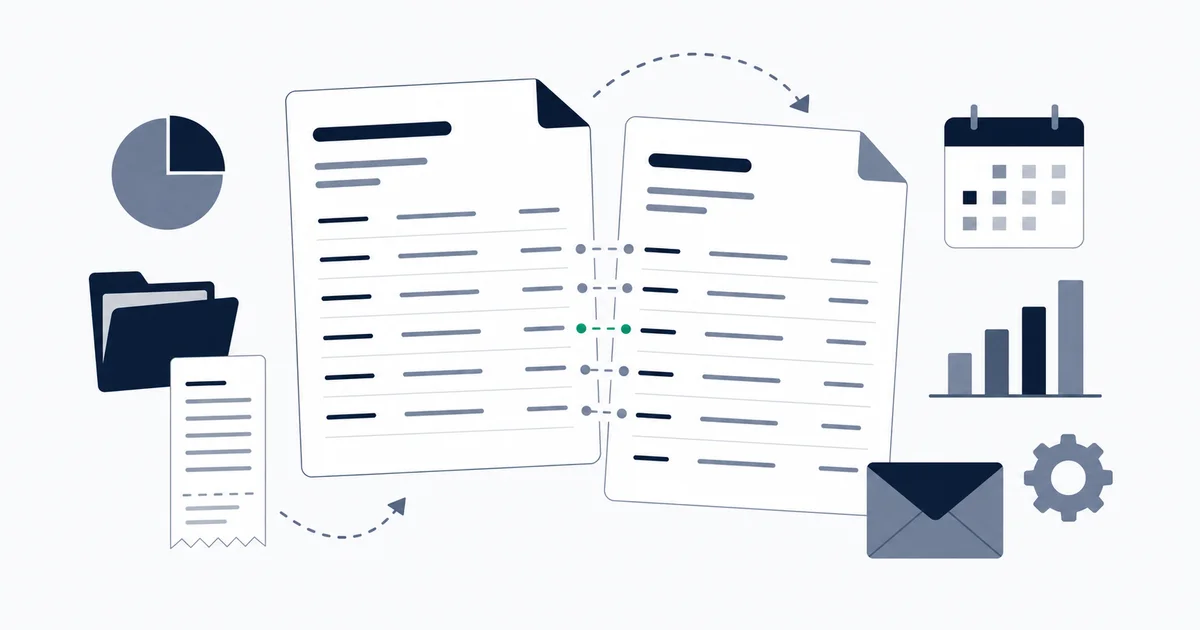
A bank reconciliation compares the cash balance recorded in your own books against the closing balance on your bank statement for the same period, then accounts for every difference between the two. Those differences are predictable: deposits you recorded that have not yet cleared (deposits in transit), checks you issued that the recipient has not yet cashed (outstanding checks), bank fees and interest the bank recorded that you have not, and outright errors on either side. When you adjust for all of them and both sides land on the same number, the account is reconciled. If they do not agree, something is wrong, and the reconciliation is how you find it.
It is one of the oldest controls in bookkeeping and still one of the most useful, because your books and the bank's records are maintained independently and nothing keeps them aligned automatically. This guide explains why the reconciliation matters, walks the process with a fully worked numeric example, and shows how to do it in QuickBooks and in Excel. Bank reconciliation is distinct from invoice reconciliation, which matches an invoice to its payment; this page is about cash, books against bank.
Why a bank reconciliation matters
The cash account in your general ledger records what you believe is in the bank. The bank statement records what is actually there, from the bank's side. These two are kept by different parties using different timing, and there is no automatic mechanism that keeps them in step. The reconciliation is that step, run on a schedule, and it earns its place by catching four categories of problem before they compound.
Uncleared and outstanding items. A check you wrote three weeks ago that the vendor never deposited still shows as spent in your books but not in the bank's. Until you identify it, your view of available cash is wrong, and you may overdraw an account that looks healthier on your statement than it is in reality.
Undetected bank charges and interest. Banks post monthly service fees, wire charges, card-processing deductions, and interest credits on their own schedule. None of these flow into your books unless you record them, and most businesses only learn of them during the reconciliation. An unnoticed monthly fee is small in isolation and meaningful across a year and several accounts.
Posting and data-entry errors. A payment keyed as 540 instead of 450, a deposit recorded twice, a transaction posted to the wrong month: these are ordinary mistakes, and the reconciliation is the routine check that surfaces them while the context is still fresh. A transposed digit caught this month is a two-minute fix. The same error found at year-end means reconstructing weeks of activity to locate it.
Fraud and unauthorized activity. Reconciliation is a detective control. A charge you do not recognize, a withdrawal you did not authorize, or a duplicated payment shows up as an unexplained difference. The sooner you reconcile, the sooner an unauthorized transaction is caught, which also matters for the dispute windows banks impose on contested charges.
Beyond catching errors, the bank reconciliation is what makes a period-end close trustworthy. When you sign off that the books are correct for the month, the reconciled cash balance is the evidence that the most liquid and most fraud-exposed account actually ties to an independent source. Tax authorities do not mandate the procedure by name, but they do require records that clearly show income and expenses; the IRS expects businesses to keep such records generally for at least three years, longer where income was understated (IRS Publication 583). Reconciled cash is how those records stay defensible.
The bank reconciliation process
The process has a clear shape: you start from two balances that disagree, adjust each side for the items the other side already knows about, and confirm both arrive at the same adjusted figure. There are two halves.
Adjust the bank balance for timing items you already recorded. These are transactions in your books that the bank has not processed yet.
- Add deposits in transit. Money you received and recorded, but which has not yet appeared on the statement (a deposit made on the last day of the month, for example).
- Subtract outstanding checks. Payments you issued and recorded, but which the recipient has not yet cashed, so the bank has not deducted them.
Adjust the book balance for items the bank recorded first. These are transactions on the statement that you had not yet entered.
- Subtract bank fees and charges the bank deducted (service fees, wire fees, card-processing costs).
- Add interest earned the bank credited.
- Correct any errors on your side that you discover while matching.
When the adjusted bank balance equals the adjusted book balance, the account is reconciled. The two halves are the entire method: one side gets the timing items, the other side gets the bank-initiated items, and any remaining gap is an error to investigate.
A worked example
Here is a single month run end to end with concrete figures.
Your records and statement at month-end:
- Book (ledger) cash balance: $14,200.00
- Bank statement closing balance: $15,650.00
They are $1,450.00 apart. You work the differences.
Items in your books not yet on the statement:
- A deposit in transit of $2,300.00, recorded on the 31st, not yet shown by the bank.
- Two outstanding checks: #1041 for $900.00 and #1043 for $475.00, issued but not yet cashed. Total outstanding: $1,375.00.
Items on the statement not yet in your books:
- A monthly service fee of $35.00.
- Interest earned of $10.00 credited by the bank.
Now adjust each side.
Adjusted bank balance:
- Start: $15,650.00
- Add deposit in transit: + $2,300.00 = $17,950.00
- Subtract outstanding checks: − $1,375.00 = $16,575.00
Adjusted book balance:
- Start: $14,200.00
- Subtract bank service fee: − $35.00 = $14,165.00
- Add interest earned: + $10.00 = $14,175.00
Those two do not match yet: $16,575.00 against $14,175.00, a remaining gap of $2,400.00. That gap is the signal the process is designed to produce. On review, you find a customer deposit of $2,400.00 that cleared the bank and appears on the statement but was never entered in your books. You record it:
- Adjusted book balance: $14,175.00 + $2,400.00 = $16,575.00
Now both sides equal $16,575.00, and the account is reconciled. The reconciliation did its job twice: it forced you to record a fee, interest, and a missed deposit, and the leftover difference pointed you straight at the omission. You finish by posting journal entries for the bank-side items (the fee, the interest, the missed deposit) so your ledger now reflects the reconciled balance. The deposit in transit and the outstanding checks need no entry; they are already in your books and will simply clear on next month's statement.
Keep last month's outstanding items list. The fastest way to reconcile is to start by checking whether the prior month's deposits in transit and outstanding checks have now cleared. Most of them will have, and ticking them off first leaves you with a much shorter list of genuinely new items to investigate.
How to reconcile in QuickBooks
QuickBooks Online builds the same two-sided process into a guided screen, so most of the arithmetic above happens for you once the bank feed has imported transactions. The workflow, following Intuit's official guidance (reconcile an account in QuickBooks Online):
- Go to Settings, then select Reconcile. (On some plans this lives under Transactions, then Reconcile.)
- From the Account dropdown, choose the bank or credit card account you are reconciling. Reconcile one account at a time.
- Enter the Ending balance and the Ending date exactly as they appear on your bank statement. This is the figure QuickBooks will drive toward. Record any service charge or interest earned from the statement in the fields provided so they are entered for you.
- Select Start reconciling. QuickBooks lists the transactions it has for the period.
- Match transactions. Tick each transaction in QuickBooks that also appears on your statement. As you do, the Difference figure at the top of the screen changes.
- Drive the Difference to 0.00. When everything that cleared is ticked, the difference should be zero. Anything left unticked is a timing item (a deposit in transit or an uncleared payment) or an error to chase down, exactly as in the manual process.
- Select Finish now once the difference is zero. QuickBooks saves the reconciliation and you can view or print the reconciliation report.
If the difference will not go to zero, QuickBooks offers a path to review changes, but resist the option to force an adjustment that makes the numbers tie without explanation; that records a plug entry and hides the underlying error. Xero and Sage follow the same logic with different menus: choose the account, enter the statement's ending balance and date, match what cleared, and resolve the difference to zero. The concept is identical across all three. For the broader category of tools that go beyond the built-in module, see account reconciliation software.
Do not record the bank service fee or interest both in the reconciliation screen and again as a manual journal entry. Doing both double-counts the amount and reopens the difference you just closed. Pick one place to record each bank-only item.
Automated bank reconciliation in Excel
Before accounting software made reconciliation a guided screen, it was done on paper, and the spreadsheet version is the modern descendant. It still has its place for a single low-volume account.
The basic setup is two sources side by side in one workbook: one sheet (or column block) holds your book transactions, the other holds the statement transactions exported from your bank. You sort both by amount or date and tick matches across, often with a helper formula. A common approach is a MATCH or XLOOKUP against the other list to flag each transaction as matched or unmatched, plus a SUMIF to total the cleared, uncleared, and unmatched groups. At the bottom you reproduce the same arithmetic from the worked example: book balance, adjusted for timing items, set against the statement balance.
For one account with a few dozen transactions a month, that is a perfectly defensible process. It is free, it is transparent, and you can see every row.
It breaks down predictably as soon as the situation grows. The formulas match on exact amounts, so two transactions for the same figure get matched to the wrong rows. Multi-line or abbreviated bank descriptions (AMZN Mktp against Amazon.com) defeat a text match entirely. Across several accounts the workbook sprawls into tabs nobody else can follow, and the matching logic lives only in the author's head. The moment you need to reconcile statements that arrive as PDFs, you first have to get the data into the spreadsheet at all, which is its own problem: see bank statement to CSV for why that conversion corrupts data more often than people expect, and how to verify it. Excel reconciliation is a fine starting point and a poor finishing one.
When to automate
The honest test is not transaction volume alone, it is whether the reconciliation is recurring and whether the data has to be wrangled before you can even match. A single year-end reconciliation does not warrant tooling. Monthly statements across several accounts, matched against the invoices and receipts you already have, is exactly the repetitive work automation exists for.
This is where Inbox Ledger fits, and the order of operations reflects its reconciliation-first design. Statements are captured from the inbox over a read-only Gmail, Outlook, or IMAP connection, or uploaded directly, so you are not logging into each bank to download a file every month. The statement parser reads multiple PDF, CSV, XLSX, OFX, QFX, MT940, and BAI2 layouts and extracts structured transactions rather than guessing from a rendered page, which removes the conversion-and-verification step the Excel route forces on you. Then the transactions are matched against the invoices and receipts already extracted from your inbox, with confidence thresholds that auto-clear the high-confidence matches and route only the exceptions to a person for review. That last part is the difference from a bank-reconciliation module that only knows about your ledger entries.
Inbox Ledger is not a full accounts-payable platform; it does not run purchase orders, approval workflows, or a general ledger. It captures documents, parses statements, reconciles them, and exports the result to QuickBooks, Xero, Google Sheets, or Drive. The comparison below is the manual reconciliation reality against the automated one.
| Manual | Automated with Inbox Ledger |
|---|---|
| Export or download each bank statement, convert older PDFs by hand | Statements captured from the inbox or uploaded once |
| Re-enter or tick every transaction against your books each month | Parser extracts typed transactions across PDF, CSV, XLSX, OFX, QFX, MT940, BAI2 |
| Investigate fees, interest, and timing items manually each cycle | Bank-only items and timing differences surfaced automatically |
| Match abbreviated bank descriptions to vendors by eye | Vendor names normalized so descriptions match reliably |
| Repeat the whole process per account, every period | Recurring statements flow through on their own after setup |
| Matching logic lives only in the spreadsheet author's head | High-confidence matches auto-clear, only exceptions reach a reviewer |
Start for free and extract your first 10 invoices without a credit card.
Closing
A bank reconciliation is not bureaucracy; it is the routine proof that the most liquid, most fraud-exposed account in your books agrees with an independent record. The method is simple once you see its shape: adjust the bank side for the timing items you already recorded, adjust the book side for what the bank recorded first, and treat any leftover gap as an error to find rather than a number to plug. Do it monthly and the differences are small and explainable. Do it only at year-end and you are reconstructing a year of cash from memory.
The tooling is a question of scale. A spreadsheet reconciles one account well and several accounts badly. QuickBooks, Xero, and Sage build the process into a guided screen tied to a bank feed. And once the work is recurring and the statements have to be parsed before they can be matched, an automated convert-and-reconcile flow against documents you have already captured is what turns the monthly chore back into a five-minute review of the exceptions. For the invoice-level side of reconciliation, start with what invoice reconciliation is, or read how the control of checking each invoice against its purchase order before payment works.