Bank Statement to CSV: Export, Convert, and Reconcile (2026 Guide)
Convert a bank statement to CSV the reliable way. Native bank exports, PDF-to-CSV and PDF-to-Excel methods, the format traps that corrupt data, and how to reconcile after.

Reviewed by Dmitry Suv, Founder & Engineer · 2026-06-18
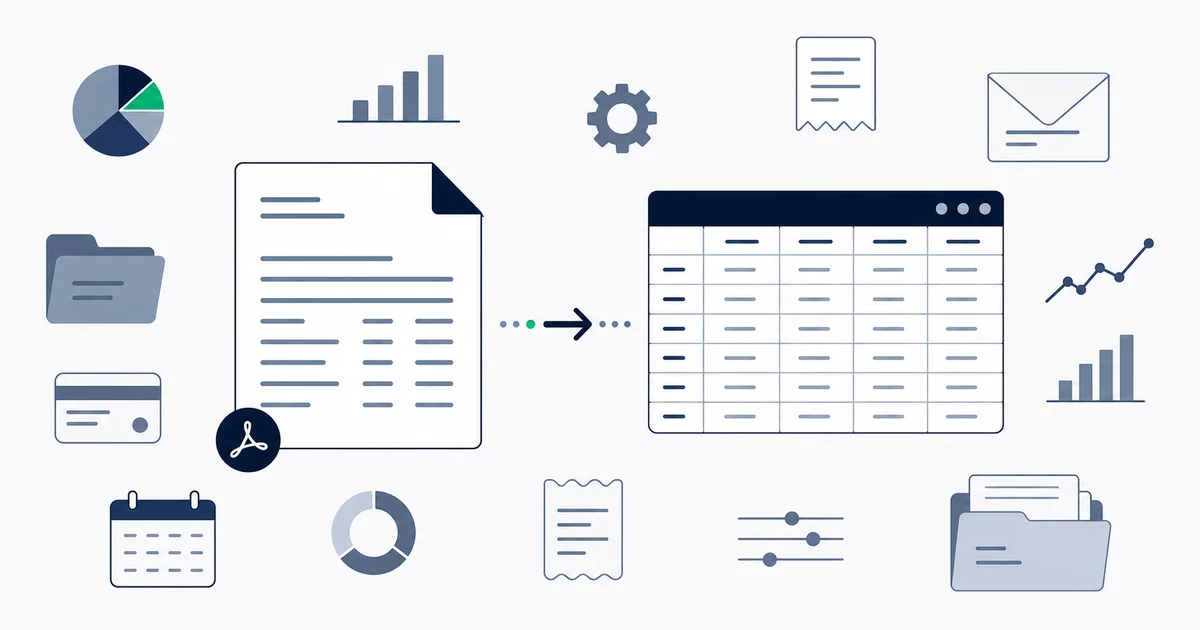
To convert a bank statement to CSV, first check whether your bank can export it directly: log into online banking, open the account, pick a date range, and look for an Export or Download option offering CSV, Excel, QFX, or OFX. That native export is the most accurate path because the bank hands you the underlying transaction data instead of a rendered page. If only a PDF exists, run it through a PDF-to-CSV converter, then verify the amounts kept their decimals, debits and credits stayed in the right columns, and no account numbers turned into scientific notation. For anything recurring, connecting the statement to an automated parser removes the conversion step and lets you reconcile in the same pass.
The reason this guide is longer than "use a converter" is that the conversion is the easy part. The hard part is trusting the file afterward. A bank statement CSV that quietly shifts a comma or drops a leading zero is worse than no CSV at all, because the error is invisible until your books do not reconcile. Below are the real export paths, the format traps that corrupt financial data, and the reconcile-after-convert step that catches the corruption before it reaches your accounting.
Method 1: The native bank export (do this first)
Before touching any converter, check whether your bank gives you the data directly. Most do, and it is the only method where you are not reverse-engineering a layout.
Log into online banking on a desktop browser (mobile apps often hide the export). Open the specific account, set the date range you need, and look for a button labeled Export, Download, or a download icon near the transaction list. The common formats:
- CSV. Plain text, one transaction per row. The most portable. Opens in Excel, Google Sheets, or any accounting tool.
- XLSX (Excel). Already typed columns, so it sidesteps most of the locale traps below. Use this over CSV when offered.
- QFX / OFX / QuickBooks Web Connect (.QBO). Structured formats built for accounting software. If your destination is QuickBooks or another ledger tool, these import more cleanly than CSV because the field mapping is predefined. See bringing those exported transactions into QuickBooks for the step-by-step on each format.
If the bank offers both CSV and XLSX, take the XLSX. The decimal-separator and scientific-notation problems that plague raw CSV mostly disappear when the column types are already baked into the file.
The native export is accurate because the bank is serializing its own database, not printing a page and hoping a parser reads it back correctly. The catch is reach: many retail banks only keep 18 to 24 months available for export. Anything older is usually a PDF statement, which is where the next methods come in.
Method 2: Converting a PDF bank statement to CSV
When the only artifact is a PDF (older periods, a closed account, or a bank that simply does not export), you convert. There are three routes.
A dedicated PDF-to-CSV converter. You upload the PDF, the tool detects the transaction table, and you download a CSV. This is the fastest path and works well on simple, single-page, single-column-amount statements. Accuracy drops sharply on complex layouts.
Copy-paste and clean by hand. Select the transaction table in the PDF viewer, paste into a spreadsheet, then manually fix the columns. Tedious, but you see every row, so nothing is silently mangled. Reasonable for a single statement, painful past that.
An automated statement parser. Instead of a one-off conversion, the statement is read by a parser that already understands many bank layouts and outputs structured rows. This is the path that scales to recurring statements, covered in the automation section below.
Whichever route you take, the conversion is not done when the CSV downloads. It is done when the CSV reconciles. That distinction is the whole point of the next section.
Method 3: PDF bank statement to Excel
Getting to Excel specifically (XLSX rather than CSV) matters when your accountant works in Excel or when you need formulas, pivot tables, and per-column types preserved.
If your bank exports XLSX natively, you are done: download and open. If you are starting from a PDF, the cleanest sequence is to convert the PDF to CSV first, then import that CSV into Excel deliberately rather than double-clicking it open. Use Data > From Text/CSV, which launches a wizard that lets you preview the parse and set the type of each column before the data lands. This one habit prevents most of the corruption described next.
Do not paste a converted table directly into a cell and call it Excel. Pasting inherits whatever Excel guesses about each value, and Excel's guesses are exactly the problem.
The format pitfalls that quietly corrupt financial data
This is the section converter marketing pages skip, and it is the one that costs people real reconciliation errors. A bank statement CSV can open looking perfect and still be wrong.
Locale decimal and thousands separators
CSV is a text format with no built-in idea of what a number means. The amount 1,234.56 uses a period as the decimal separator and a comma for thousands (US/UK convention). In much of continental Europe the same value is written 1.234,56. When you double-click a CSV open, Excel interprets it using your operating system's regional settings. If the file's convention and your OS convention disagree, Excel either splits a single amount across two columns at the comma, or misreads the magnitude entirely. A statement total can land off by orders of magnitude and still look like a plausible number.
The fix: import via Data > From Text/CSV and explicitly tell Excel the locale of the file, or set the column to Text and convert deliberately. Never rely on the double-click default for financial data crossing locales.
Long account and reference numbers
Account numbers, card numbers, and transaction reference IDs are not quantities, but Excel treats any all-digit string as a number. A 16-digit reference becomes scientific notation like 1.23457E+11, and the original digits are gone. Numbers with meaningful leading zeros (some sort codes and account numbers) lose those zeros. Once saved, the original value is unrecoverable from that cell.
The fix: in the From Text/CSV wizard, set every identifier column to Text, not Number, before importing.
Multi-line transaction descriptions
PDF statements often wrap a long merchant description across two or three visual lines. A naive PDF-to-CSV converter reads each visual line as a new row, so one transaction becomes several rows, most with blank amount fields. Your row count balloons and your column alignment drifts from that point down.
The fix: after conversion, check that the number of rows with a non-blank amount matches the number of transactions on the statement, and that no amount-less "orphan" rows slipped in.
Merged date and running-balance columns
Two layout quirks break tabular parsing. Some statements print the date only on the first transaction of each day, leaving later rows blank, and the converter then misattributes dates. Others include a running balance column that looks like an amount column, so the converter pulls balances into your transaction amounts and doubles your totals.
The fix: confirm each row has its own date, and decide explicitly whether you want the running-balance column at all (usually you do not for bookkeeping; you want the per-transaction debit/credit).
A converted CSV that opens cleanly is not verified. The dangerous errors here (a shifted decimal, a pulled-in balance column, a reference number turned to scientific notation) all produce files that look fine at a glance and only surface when the numbers fail to reconcile. Always verify against the statement totals before importing into your books.
The step almost everyone skips: reconcile after you convert
Converting the statement gets you a spreadsheet. It does not get you correct books. The verification that turns a converted file into a trustworthy one is reconciliation, and it is the element most "bank statement to CSV" guides leave out entirely.
The minimum check, every time:
- Opening balance match. The first balance in your converted data should equal the statement's printed opening balance.
- Closing balance match. Opening balance, plus the sum of all credits, minus the sum of all debits, should equal the statement's printed closing balance. If it does not, a row was dropped, duplicated, or an amount was mangled by one of the pitfalls above.
- Transaction count match. The number of transaction rows should equal the number on the statement. A mismatch usually means a multi-line description got split or a balance row leaked in.
That arithmetic check is the core of a bank reconciliation: it catches conversion corruption before it reaches your accounting. The larger and more valuable reconciliation, though, is checking the statement against what you already have in your books, matching each statement line to the invoice that produced it: the invoices, receipts, and payments you expected to see. That is where converting a statement stops being a data-export chore and becomes actual bookkeeping. If the term is new, start with what invoice reconciliation is and how it fits a monthly close.
Automating the convert-and-reconcile workflow with Inbox Ledger
Everything above is the manual reality. For a one-time export it is fine. For statements that arrive every month, doing the conversion, the locale checks, the column verification, and the reconciliation by hand each cycle is exactly the repetitive work that automation exists for.
Inbox Ledger is reconciliation-first AI bookkeeping, and the bank-statement flow reflects that order: the conversion is a means to the reconciliation, not the end.
Get the statement in. Connect Gmail, Outlook, or any IMAP inbox over OAuth (read-only), or upload statement PDFs directly. Statements that your bank emails are captured as they arrive, so you are not logging in to download each month.
Let the parser read it. The bank-statement parser is built to handle multiple PDF and statement layouts rather than a single fixed template, which is the part that breaks generic PDF-to-CSV converters. It extracts structured transactions (date, description, signed amount, and reference) from the layout instead of guessing from visual lines, so the multi-line-description and merged-date problems above are handled at extraction time rather than left for you to clean up.
Reconcile against the ledger. This is the step a plain converter cannot do. Once the statement transactions are structured, they are matched against the invoices, receipts, and documents Inbox Ledger has already extracted from your inbox, so you see what is matched, what is missing, and what is unexpected, instead of just a flat spreadsheet of rows. The deeper mechanics live in the invoice reconciliation software guide.
Export where your books live. From there, push to QuickBooks, Xero, Google Sheets, or Drive. If you genuinely just want a clean CSV, you have one, but now it is a reconciled CSV rather than a hopeful one.
| Manual | Automated with Inbox Ledger |
|---|---|
| Log into each bank and export, or convert older PDFs one by one | Statements captured from the inbox or uploaded once |
| Re-check decimal separators and scientific-notation columns every file | Parser handles multiple layouts and extracts typed transactions |
| Hand-fix multi-line descriptions and stray running-balance rows | Multi-line and merged-column issues handled at extraction |
| Manually total debits and credits to test against the closing balance | Totals and counts validated against statement balances automatically |
| Match transactions to invoices and receipts by eye | Transactions reconciled against already-extracted invoices and receipts |
| Repeat the entire process every month per account | Recurring statements flow through on their own after setup |
When a manual conversion is the right call
Automation is not always warranted, and pretending otherwise would be dishonest.
If you need to convert one statement, once (a single year-end PDF, a one-off for a loan application), the native bank export or a careful manual conversion plus the three-line balance check is the right tool. Do not set up a pipeline for a single file.
If you are converting a handful of statements a few times a year and do not need them matched against invoices, the native export into Excel via the From Text/CSV wizard is perfectly adequate. Spend the ten minutes, run the balance check, move on.
The automation earns its place when statements are recurring and need reconciling: monthly statements across several accounts, a business matching bank activity to supplier invoices, or anyone who has been burned by a silently corrupted CSV and wants the verification built in rather than remembered. The signal is not volume alone, it is whether the conversion needs to end in reconciliation.
Closing: the file is only as good as its reconciliation
Converting a bank statement to CSV is genuinely a five-minute task when the bank exports natively and a careful one when you are wrestling a PDF. But the CSV itself is not the deliverable. A spreadsheet that does not tie back to the statement's own opening and closing balance is a liability, not an asset, because every downstream number inherits whatever the conversion got wrong.
So treat conversion and verification as one task. Prefer the native export. If you must convert a PDF, import it deliberately and protect your decimal separators and identifier columns. Then run the balance-and-count check before the data touches your books. And if this is a monthly job rather than a one-off, let the convert-and-reconcile run on its own, so the only thing left for you is reviewing the matches, not chasing a misplaced comma.