Client Document Collection Software for Accountants: Request Tools vs Capture at the Source
How accounting and bookkeeping practices collect client invoices and receipts without chasing, comparing request-and-remind tools with capture-at-source tools, and what a firm can set up today.

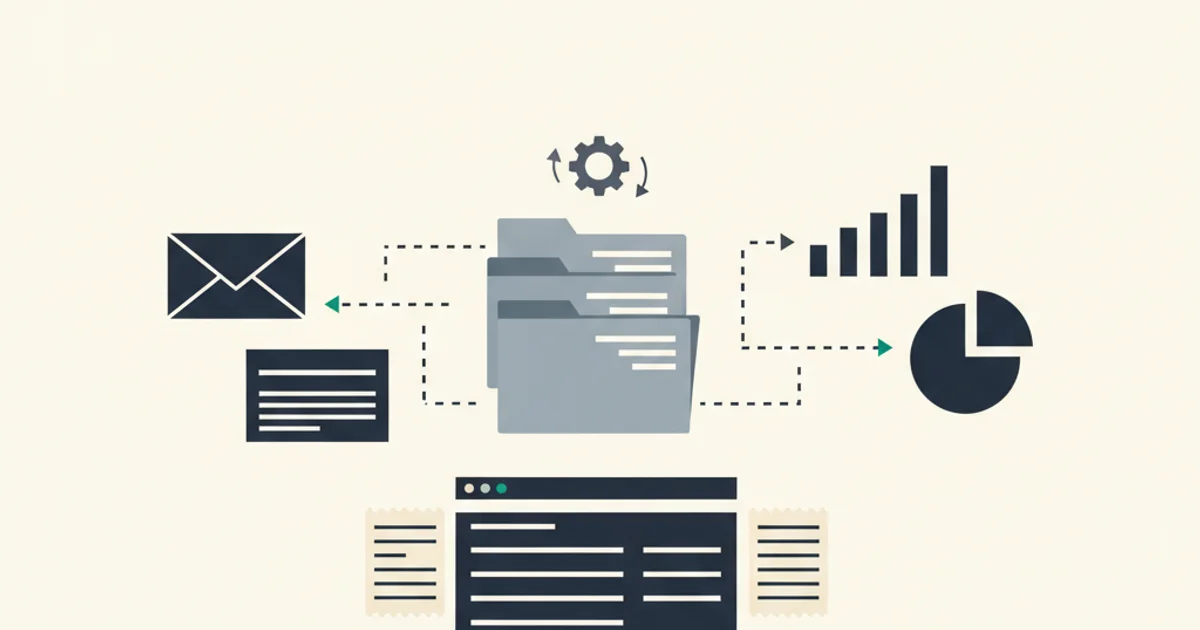
Client document collection software is a tool an accounting or bookkeeping practice uses to obtain source documents from clients and track what is still missing. It comes in two forms. Request tools send the client a checklist, an upload link, and automatic reminders. Capture tools skip the request and pull invoices and receipts from where they already sit: a forwarding address, a supplier portal, or the client's inbox.
Most practices need some of both, and the mistake to avoid is buying a request tool for a problem that is really a capture problem. A tax organizer has to be requested; nobody else has the client's forms. A month of supplier invoices does not, because every one of them is already in the client's email.
This guide is for the firm side. It lays out what each category does, names the tools with their current pricing structure as of October 2026, and ends with the setup a small practice can run today. The client-side version of the same problem, with the scripts and nudges that get a reluctant owner to send receipts, is in how to get clients to send receipts. The broader document management category, meaning long-term storage and tax-document portals, is covered in best document management software for accountants.
Why chasing clients for documents fails
Chasing fails because the client's incentive and the firm's deadline point in different directions. The invoice is already in the client's inbox, the supplier is already paid, and the only person who needs the document is the bookkeeper. Finding it, downloading it, and emailing it is a chore that loses to every customer-facing task on the client's list, so month-end arrives with a partial pile and the firm's staff spend the first week of the close writing reminder emails.
Picture the usual pattern, as an illustration: a firm with 20 clients sends a monthly "please send your receipts" email. About half the clients respond within the week with some of their documents. A quarter respond after a second nudge. The rest need a phone call, and what arrives is incomplete because the client forwarded what they remembered rather than what exists. The bookkeeper then reconciles the bank statement against the documents in hand and finds payments with no invoice behind them, which starts another round of requests.
Software fixes this in one of two ways. It can make the request easier to complete (one link, a checklist, reminders that go out without a human writing them). Or it can remove the request entirely by collecting the document from the place it already lives. The first is a better chase. The second is no chase.
Request-and-remind tools
A request tool is software that sends a client a structured list of documents to provide, gives them one secure place to upload, and reminds them automatically until each item is marked complete. The firm sees a status board of who owes what.
Content Snare
Content Snare is a stand-alone request tool built around a drag-and-drop request builder, a client-facing page with upload fields and questions, approval of each submitted item, and scheduled reminder emails. Content Snare's pricing page lists the Basic plan at $35 per month billed annually ($42 monthly) for 20 active requests and 2 users, Plus at $71 ($85 monthly) for 50 active requests and 5 users, and Pro at $119 ($143 monthly) for 100 requests and 10 users, with unlimited clients on every plan. The unit that scales is the active request, so a monthly receipts request to 30 clients needs the Plus tier.
Karbon client requests
Karbon is practice management software whose client request feature sends a task list to the client by email with a due date and an automatic reminder schedule. Karbon's help center describes the mechanics: requests can be sent manually or by sending rules inside a work item, reminders follow a gentle, urgent, or custom schedule, and automatic reminders stop after the fifth one to reduce the chance of being flagged as spam. This is a strong fit if the firm already runs its work in Karbon, since the request lives inside the job it blocks.
TaxDome organizers and requests
TaxDome is an all-in-one practice platform whose client portal includes organizers (questionnaires), trackable document requests, automated reminders, e-signatures, and secure document exchange. Pricing is per user per year with a multi-year discount; TaxDome's Canadian pricing page shows the structure, and the US figure should be read on TaxDome's own site because it changes with the commitment term. TaxDome suits firms whose collection problem is dominated by tax-season documents, where the client genuinely has to supply forms the firm cannot get anywhere else.
Where request tools stop
A request tool makes the client's job easier but does not do the job. For a tax organizer that is fine; nobody else has the client's W-2. For supplier invoices it is the wrong shape, because the complete set of invoices exists in the client's email already and the client is the slowest possible path to it. A request for "all supplier invoices for September" is never fully completed, and the firm cannot know what is missing until the bank reconciliation exposes it.
Capture-at-source tools
A capture tool is software that collects invoices and receipts without a client action, by giving each client a forwarding address, logging into supplier portals, or connecting to the client's email inbox with read-only access, and then extracts the data from each document. The three mechanisms differ sharply in how much of the client's documents they actually reach. The three capture-first vendors are compared feature by feature in Dext vs Hubdoc vs AutoEntry.
Forwarding addresses
Every capture tool issues a forwarding address per client. Hubdoc lists "forward invoices from your inbox" beside its mobile and upload methods, AutoEntry gives each account a dedicated address for emailed PDFs, Dext issues an extract-by-email address per client, and QuickBooks Online's own Receipts feature creates one that, per Intuit's help article, accepts PDF, JPEG, JPG, GIF, and PNG files between 46 KB and 20 MB, one receipt per file.
A forwarding address removes the upload step but not the human step: someone still has to see the invoice and forward it. The usual workaround is a Gmail or Outlook rule that auto-forwards mail matching "invoice" or "receipt" to the address, which catches the suppliers whose subject lines cooperate and misses the ones that say "Your order has shipped" or deliver the invoice as a portal link.
Supplier portal fetch
Fetch is a connection where the capture tool logs into a supplier's billing portal with the client's credentials and downloads new invoices. Dext Fetch is the live example among the three capture-first tools: Dext's help center says it works only for suppliers on its supported list, pulls documents already in the portal within 48 hours of setup, then checks for new documents every 7 days, with email forwarding as the fallback for unsupported suppliers. Hubdoc retired its standard fetch connections on 27 April 2022, per Xero's product update, keeping only direct API connections with Bank of America, Wells Fargo, and Stripe.
Fetch covers the suppliers on the list and requires the client to hand over portal logins, which many owners will not do and which break whenever a password changes. A weekly check also means a 7-day lag on anything that arrived after the last run.
Inbox connection
Inbox connection is a read-only OAuth link to the client's Gmail or Outlook account (or an IMAP login for other providers) that lets the capture tool read incoming mail, identify invoices and receipts, and extract them, without sending, moving, or deleting anything. It is the only method that reaches every supplier that emails the client, regardless of subject line, because those invoices are already in the inbox. Portal-only suppliers still need a download or a fetch. It is also the only method that recovers the backlog: a retroactive scan reads past months of mail the client never forwarded.
The trade-off is consent. The client has to click "Sign in with Google" or "Sign in with Microsoft" once and approve read-only mail scope. It is a one-time ask, which is easier to make than a portal password or a monthly forwarding habit, because the client does it once and the firm does not have to ask again. The owner's side of that setup, with the alternatives they may try first, is in send invoices to your accountant automatically.
Comparison: how each approach collects the monthly invoice stream
| Approach | Client action per document | Reaches invoices in | Backlog recovery | Reminder burden on firm | Typical tools |
|---|---|---|---|---|---|
| Email request | Find, download, attach, send | Whatever the client remembers | None | High | Plain email |
| Request tool with portal | Find, download, upload to link | Whatever the client remembers | None | Low (automated) | Content Snare, Karbon requests, TaxDome |
| Forwarding address | Forward each email (or set a rule) | Attachments the rule catches | None | Medium | Dext, Hubdoc, QuickBooks Receipts |
| Supplier fetch | Share portal login once | Supported suppliers only, weekly | Portal history only | Low | Dext Fetch |
| Inbox connection | Sign in once, read-only | Every emailed invoice | Yes, retroactive scan | None | Inbox Ledger |
The table makes the division clear. Use a request tool for the documents that only the client can produce. Use capture for the stream that already exists in email.
What a firm can set up today with Inbox Ledger
Inbox Ledger connects to Gmail, Outlook or IMAP with read-only access, finds invoices and receipts, extracts the data with AI, matches them to bank statement transactions, and pushes bills to QuickBooks Online or Xero. For a practice it adds a firm layer on top, and here is exactly what that layer does as of October 2026, stated so you can verify it on the accountants page.
One command center for every client. The firm workspace lists every client business on one screen with its status, and "Open client" takes a staff member into that client's full workspace in one click. Each client is an isolated workspace: documents, vendors, rules, and export targets never cross between clients.
Two ways to connect a client.
- Firm adds the client. From the firm workspace, add a client business by name, optionally with the owner's email. The firm gets a claim link to share by email, chat, or WhatsApp; the owner opens it, signs in, and their workspace links to the firm. If the owner already uses Inbox Ledger, their existing workspace is linked rather than duplicated. The firm can also connect the client's inbox or hand out a forwarding address itself when the client prefers not to log in.
- Client invites the firm. A client who already has a workspace opens Invite users, picks the Accountant tile, and sends the firm a link. Accepting it links the firm to that client as a client-owned workspace. The accountant persona has no personal business workspace and lands directly in the firm view.
Capture that does not depend on the client. Once the inbox is connected, new invoices are picked up by the regular sync. For the backlog, a retroactive scan covers this month, last month, last quarter, 6 months, or 12 months, or a custom range up to 24 months. The same AI extraction reads vendor, dates, currency, totals, tax, bill-to, and line items from each document, and a two-level duplicate check (invoice number plus vendor, then a semantic fingerprint) flags the same invoice arriving twice.
One pool, not one subscription per client. Firm plans are annual, sized by total invoice volume rather than client count, with unlimited client workspaces and unlimited team members. Every client draws from one shared credit pool, so a quiet client covers a busy one, and unused firm credits roll over at renewal. A brand-new firm gets 50 trial credits in its pool before buying anything. A client can also be set to pay for their own usage when that is the arrangement.
The bookkeeping work happens in the client workspace. Bank statement upload and matching, QuickBooks Online and Xero bill push with the PDF attached, exports to Google Drive, Sheets, and OneDrive, and AI rules all run per client. Duplicate payments and silent price increases found across clients roll up into a single Money Found view at the firm level, which is the kind of finding a bookkeeper can take back to the client. The matching mechanics are in /features/reconciliation.
What Inbox Ledger does not do: it has no client portal for uploading tax forms, no e-signature, and no engagement letters. It is the capture and reconciliation layer. Pair it with a request tool for the annual documents and with your practice management for the workflow.
Retention: collect the document, not just the data
A collection system has to keep the original. The IRS recordkeeping guidance sets the periods: keep records 3 years in the general case, 6 years if income was under-reported by more than 25 percent of gross income, 7 years for a claim from worthless securities or a bad debt deduction, and indefinitely if no return was filed or a fraudulent return was filed; employment tax records are kept at least 4 years. Any tool that extracts numbers and discards the PDF leaves the client exposed when a notice arrives, so check that every captured document is stored and downloadable, and that it stays with the transaction when it is pushed to the ledger.
A collection setup for a 5 to 30 client practice
- Split the document list in two. Annual and one-off items (tax forms, signed letters, loan statements, insurance) go to a request tool. The monthly supplier invoice and receipt stream goes to capture.
- Connect the capture layer first. For each client, send the claim link or connect the inbox during onboarding. Run a 12-month retroactive scan before the first close so the backlog is in before the chase would have started. The catch-up bookkeeping workflow covers the rest of a cleanup engagement.
- Give every buyer a forwarding address. Staff who pay for things from a personal inbox forward to the client's address; the owner's inbox is connected directly.
- Reconcile monthly against the bank, not against the inbox. Upload the statement, confirm matches, and work the unmatched transactions list. That list is now your document request, and it is specific: "the $1,240 payment to US Foods on the 14th has no invoice."
- Review the request tool monthly. With the stream automated, the request list shrinks to a handful of items the client truly has to produce, and reminders stop being the firm's main client touchpoint.
The end state is a close that starts with documents already in place and a month-end checklist that is about review, not retrieval. Our month-end close checklist assumes that starting point.
Frequently asked questions
Is read-only inbox access safe for a client to grant?
Read-only scope means the tool can read messages and cannot send, reply, delete, move, or label anything. The client authorizes it through Google or Microsoft, so no password is shared, and access is revoked from the client's own account settings in one click. The firm should still tell the client in plain words what is read and why.
What about clients who refuse any inbox connection?
Give them a forwarding address and a Gmail or Outlook rule for their main suppliers, accept that the catch rate will be lower, and lean on the bank reconciliation to find what the rule missed. The unmatched transactions list becomes a precise, short request rather than a vague monthly plea.
Can I see what a client's inbox holds before onboarding them?
Yes. The free Inbox Audit connects one inbox read-only and shows every invoice, vendor, and recurring charge from the last 12 months with duplicates flagged. It doubles as a volume estimate for choosing a firm plan.