How to Send Invoices to Your Accountant Automatically (4 Methods Compared)
Four ways to get supplier invoices and receipts to your bookkeeper without forwarding each one, from Gmail and Outlook rules to a read-only inbox connection, with steps and failure modes.

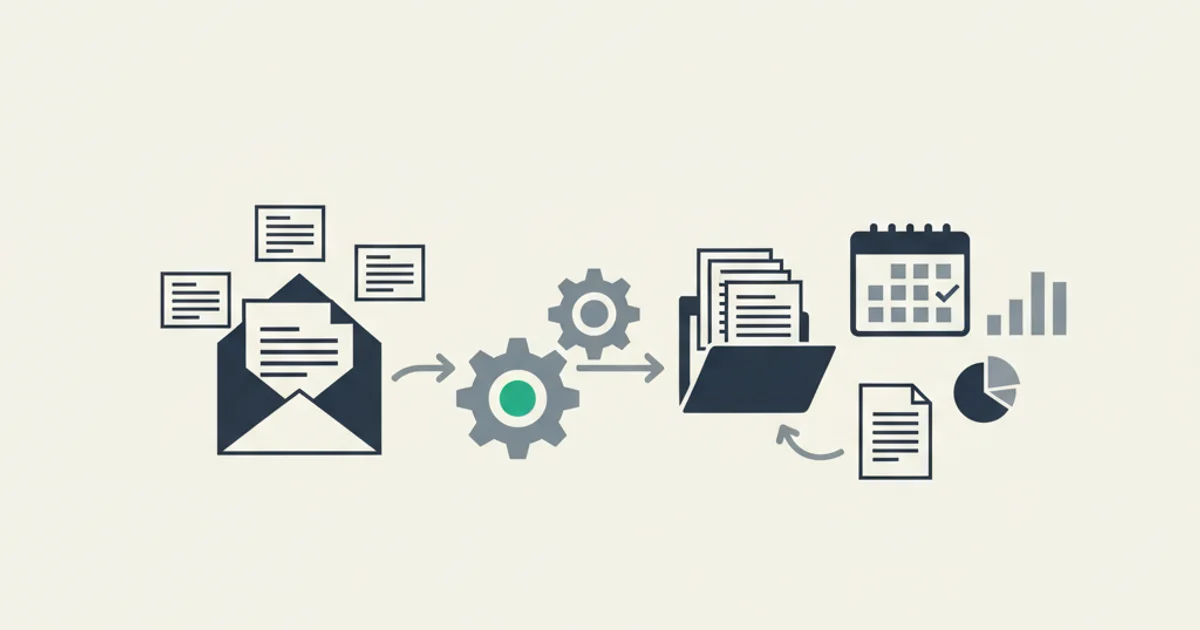
The fastest way to send invoices to your accountant automatically is to stop sending them: connect the inbox where supplier invoices already arrive with read-only access, let a capture tool find and extract every invoice and receipt, and give your accountant access to the organized result with the original PDFs attached. You never forward another email, and your accountant works from a complete, deduplicated set.
If you are not ready for that, a Gmail or Outlook forwarding rule, your ledger's receipt inbox, or a shared folder each get you part of the way, with specific failure modes this guide names.
We compare the four methods below with the exact steps, what arrives at the accountant's end, and where each one leaks. The bookkeeper's side of this problem, with the scripts that get a client to cooperate, is in how to get clients to send receipts. The filing and retention side is in how to organize business receipts.
Why forwarding invoices by hand breaks down
Forwarding by hand breaks because invoices arrive in too many shapes and too many inboxes for one person to notice them all. Our data on how vendors deliver invoices found a large share arriving as a link to a billing portal or as an invoice embedded in the email body rather than a clean PDF attachment. Ad platforms email whoever opened the account, SaaS tools email whoever signed up, the distributor emails the person who placed the order. A business owner who forwards "everything that looks like an invoice" at month-end forwards what they remember, and the accountant finds the gaps when a bank payment has no document behind it.
The four methods below are ranked by how little they rely on you noticing the invoice.
Method 1: a Gmail or Outlook forwarding rule
A forwarding rule is a filter in your email client that sends a copy of matching incoming messages to another address without you touching them. It takes five minutes and costs nothing.
Gmail. Google's forwarding help gives the steps: open Settings, See all settings, the Forwarding and POP/IMAP tab, click Add a forwarding address, enter your accountant's address, and confirm the verification message Gmail sends to that address. Then, because automatic forwarding sends every new message by default, turn it off and instead create a filter: enter your criteria in the search options (for example, subject contains "invoice OR receipt OR statement"), click Create filter, choose Forward it, and pick the address.
Outlook. Microsoft's automatic forwarding article covers Outlook on the web: Settings, Mail, Forwarding, turn forwarding on, enter the address, and keep a copy of forwarded messages. To forward only certain messages, use a rule instead, which Microsoft documents separately.
Where it leaks. The rule only sees what the filter matches. "Your order has shipped" with the invoice attached is missed. An email that says "Your invoice is ready, view it in your account" is forwarded, but the invoice is behind a login your accountant does not have. Receipts from Stripe, Shopify, or PayPal often arrive as formatted email bodies with no attachment, which forward fine but still have to be read and keyed by hand. And your accountant now has a mailbox full of raw emails from several clients, which is a filing problem moved rather than solved.
Method 2: forward to your ledger's receipt inbox and invite your accountant
A ledger receipt inbox is a dedicated email address inside QuickBooks Online or Xero that reads forwarded receipts and stages them for review. Pair it with accountant access to the ledger and the accountant sees the staged items.
QuickBooks Online. Intuit's email receipts article sets it up from All apps, Accounting, Receipts, Forward from email. Attachments must be PDF, JPEG, JPG, GIF, or PNG between 46 KB and 20 MB with one receipt per file, sent from the address you sign in with. QuickBooks extracts the date, amount, vendor, and card last four, and places the item in the Receipts tab for review. Then invite your accountant per Intuit's invite an accountant steps: Settings, Manage users, Accounting Firms tab, Invite firm, enter their email. Accountant users do not count toward your user limit. The full map of what QuickBooks then automates on its own, and what it does not, is in QuickBooks automation.
Xero. Hubdoc comes with a Xero subscription and gives you an inbound address; it extracts the supplier, date, total, due date, and invoice number per Hubdoc's field reference and publishes to Xero with the document attached. Invite your accountant as an Advisor from Settings, Users, Invite a user, per Xero's advisor guide.
Where it leaks. Someone still forwards each email, or you combine this with Method 1 and inherit its filter gaps. Extraction is header-only in both ledgers (no line items), and QuickBooks' exact-bill-number check is the only duplicate protection. The deeper comparison of the QuickBooks paths is in email invoices to QuickBooks automatically.
Method 3: a shared cloud folder
A shared folder is a Google Drive, OneDrive, or Dropbox folder your accountant can read, into which you save invoice PDFs. It is the right tool for documents you already download: a lease, a loan statement, an insurance schedule. It is the wrong tool for the monthly stream, because every invoice in your email has to be downloaded and saved by hand first, and a folder of PDFs still has to be keyed into the ledger by your accountant (or read one at a time by a chatbot, which has its own limits; see ChatGPT for invoice processing). Use it as the archive, not the pipeline, and name files consistently (date, vendor, amount) so the accountant can find the one they need in April.
Method 4: connect the inbox read-only and let the data flow to your accountant
An inbox connection is a read-only OAuth link to your Gmail or Outlook account (or an IMAP login for other providers) that lets a capture tool read incoming mail, find invoices and receipts, extract them, and hand the organized result to your accountant. It is the only method that does not depend on you noticing the invoice, and the only one that recovers the backlog.
Inbox Ledger connects to Gmail, Outlook or IMAP with read-only access, finds invoices and receipts, extracts the data with AI, matches them to bank statement transactions, and pushes bills to QuickBooks Online or Xero. Here is how the hand-off to your accountant works in practice as of October 2026:
- Connect once. Sign in with Google or Microsoft and approve read-only mail access. Nothing is sent, moved, labeled, or deleted. You can also add a forwarding address for colleagues who buy things from their own inboxes, and a Telegram or WhatsApp bot for paper receipts.
- Clear the backlog. Run a retroactive scan over last month, last quarter, the last 6 or 12 months, or a custom range up to 24 months. Scans longer than a quarter ask you to confirm first because they can use your whole credit balance at once.
- Let extraction do the keying. Each document yields vendor, dates, currency, totals, tax, bill-to, and line items. An identical file is recognized by its hash and skipped; a duplicate under a different filename or reference is caught by an invoice-number-plus-vendor check and a semantic fingerprint, and flagged against the original. The method is explained in how to prevent duplicate invoice payments.
- Invite your accountant into the workspace. Open Invite users, pick the Accountant tile, and share the link. Your accountant accepts it, their firm is linked to your workspace, and they work on your documents from their own firm view. You stay the owner and can disconnect the accountant at any time from your members list.
- Or route the processed invoices to their email. The Email Routing add-on auto-forwards each processed invoice to your accountant's address with the original PDF attached and the extracted data in the body, so an accountant who prefers email receives structured data rather than raw mail. Routing is included on the Premium plan.
- Or push straight to the ledger. Each processed invoice can be pushed to QuickBooks Online as a Bill, with the vendor resolved, your default expense account applied, line items mapped, and the PDF attached; Xero gets the same bill push. Google Drive, Sheets, OneDrive, and CSV exports cover accountants who work from files. Details on /features/integrations.
- Reconcile against the bank together. Upload your bank statement (PDF, CSV, Excel, OFX, QFX, MT940, or BAI2) and the matching engine pairs transactions with invoices, with a confidence score and a plain-language reason for each. Unmatched payments become your accountant's precise question list. The process is in what is a bank reconciliation.
Your accountant receives, for each invoice, the vendor, number, dates, currency, amounts, tax, line items, the PDF, and a duplicate flag; for each month, a statement matched to those invoices with the gaps listed. That is the set they would otherwise build by hand.
The four methods side by side
| Method | Setup time | What your accountant receives | Catches | Misses | Backlog |
|---|---|---|---|---|---|
| Gmail or Outlook rule | 5 minutes | Raw emails | Emails matching the filter | Portal-link invoices, odd subjects, body-only receipts (as data) | No |
| Ledger receipt inbox plus accountant access | 15 minutes | Staged items with header fields | What someone forwards | Line items, non-exact duplicates, anything not forwarded | No |
| Shared cloud folder | 10 minutes | PDFs to key in | What you download | Everything still in email | Manual |
| Read-only inbox connection | 5 minutes plus a scan | Extracted data, PDFs, duplicate flags, bank matches, optional ledger push | Every emailed invoice | Paper receipts unless photographed via bot | Yes, up to 24 months |
What your accountant actually needs from you
Whatever method you use, the accountant's needs are the same, and they are a good test of the setup:
- The original document, kept. The IRS recordkeeping periods are 3 years in the general case, 6 years if more than 25 percent of gross income was omitted, 7 years for a worthless securities or bad debt claim, and indefinitely if no return or a fraudulent return was filed, with employment tax records kept at least 4 years. Numbers without the PDF do not satisfy that.
- Completeness they can verify. A bank statement matched to the invoices, with unmatched payments listed, lets the accountant see what is missing instead of trusting that you forwarded everything.
- No duplicates. The same invoice arriving from two inboxes, or re-sent with a new reference, costs the accountant time to spot and costs you money if it is paid twice.
- Line items when the invoice has them. A distributor invoice coded to one account is wrong; the accountant needs the lines to split it.
Choosing a method by volume
Under about 20 supplier invoices a month from a handful of vendors, a forwarding rule plus your ledger's receipt inbox is enough, with a shared folder for the annual documents. Between 20 and 100, the filter gaps and the header-only extraction start costing your accountant hours you pay for, and an inbox connection pays for itself in the first close. Above 100, or across more than one inbox, the connection is the only method that stays complete.
If you want to see the gap before choosing, the free Inbox Audit connects one inbox read-only and shows every invoice, vendor, and recurring charge from the last 12 months with duplicates flagged. Share the result with your accountant; it is usually the first time either of you has seen the whole list.
Frequently asked questions
Is it safe to connect my inbox to a third-party tool?
Check three things: the access is read-only (the tool can read but not send, delete, or move), the connection is granted through Google or Microsoft sign-in rather than a shared password, and you can revoke it from your own account settings. Inbox Ledger meets all three and does not store email bodies, only the sender, subject, and recipients plus the extracted documents and data.
Can my accountant set this up for me?
Yes. An accountant using Inbox Ledger's firm workspace can add your business and send you a claim link; you open it, sign in, and connect your inbox in a couple of clicks. Your accountant never needs your password and you remain the owner of your workspace.
What about invoices I receive on paper?
Photograph them and send the photo to the Telegram or WhatsApp bot, or upload the image in the dashboard. They are extracted the same way as emailed PDFs and sit in the same list your accountant works from.