How to Catch Up on Bookkeeping: A Backlog Cleanup Plan for Small Businesses
A step-by-step plan to catch up on months of neglected bookkeeping, with a document-recovery checklist, a worked example, and the order of operations that avoids redoing work.

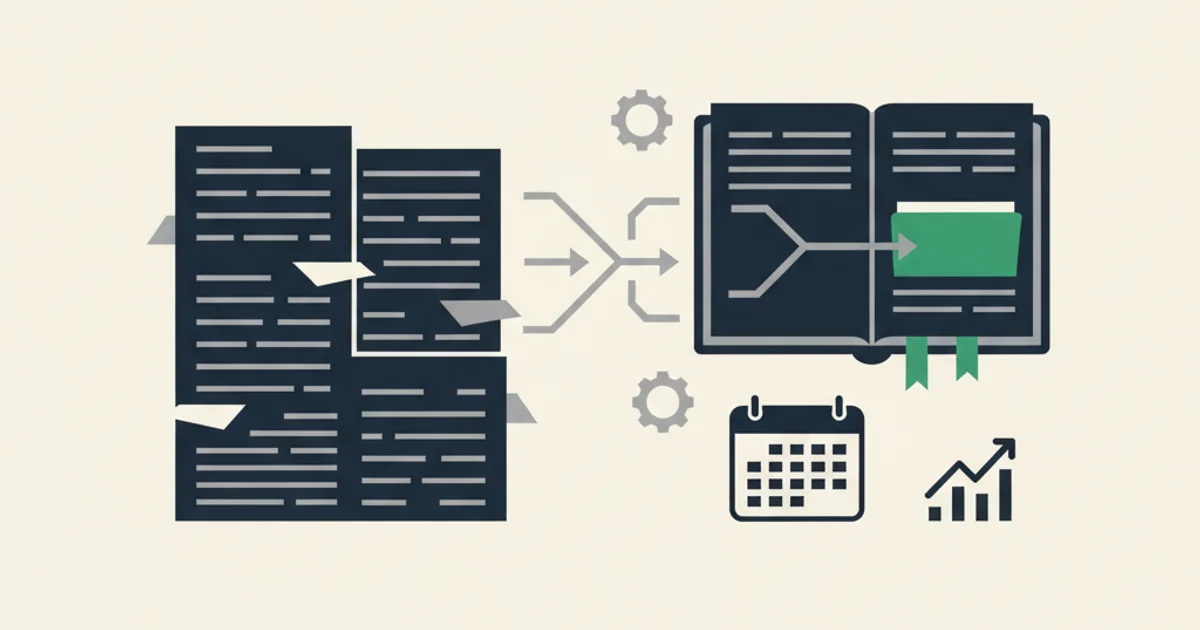
To catch up on bookkeeping, work from the bank statements backward: download every statement for the gap, recover the invoices and receipts behind each payment, categorize in bulk by vendor, reconcile one month at a time, and lock each month as you finish. The order matters more than the tools; starting with the invoice pile is how a weekend cleanup becomes a month of rework.
Why do bookkeeping backlogs happen, and why do they feel worse than they are?
A bookkeeping backlog is a stretch of months in which money moved through the business but the transactions were never categorized, matched to their supporting documents, or reconciled against the bank. It usually starts with a busy quarter and becomes a problem at a specific moment: a tax deadline, a loan application, a new bookkeeper asking for "clean books through last month," or a partner who wants to know what the business actually earned.
The reason it feels overwhelming is that the work seems to scale with the number of transactions. It does not. It scales with the number of vendors and the number of missing documents. A cafe with 96 supplier invoices across eight months has perhaps twelve vendors; once each vendor is categorized once and its invoices are gathered, the remaining 84 transactions are repetition. That is the fact this plan is built around.
Step 1: Define the gap and set the finish line
Before touching a transaction, write down two dates: the last month that was fully reconciled and closed, and the month you need clean books through. If no month was ever formally closed, the start date is the beginning of the earliest tax year that is still open.
How far back is far enough? The IRS record retention guidance sets the floor: keep records for 3 years from the date you filed, 6 years if you omitted more than 25 percent of gross income, 7 years for worthless securities or bad debt deductions, and at least 4 years for employment tax records. If a year's return has been filed and those windows have passed, rebuilding its transactions is rarely worth it. If a return is unfiled or you may amend it, that year is in scope.
Decide the finish line at the same time. "Through last month, reconciled, with a closing date set" is a finish line. "Caught up" is not.
Step 2: Pull every statement for the gap
Download statements for every account that moved business money: each checking account, each business credit card, any merchant account (Stripe, Square, PayPal), and any account that was used for business even if it should not have been. Get them in the most structured format your bank offers. CSV or OFX beats PDF because it imports without re-typing; a PDF still works but adds a parsing step.
Put the files in one folder, named by account and month. Then build a one-line inventory: account, first statement month, last statement month, any missing months. A missing statement is a hard blocker for that month's reconciliation, so request it from the bank now rather than discovering the hole on day three.
Why statements first? Because a bank statement is complete by construction. Every dollar that left the business is on it. Your invoice pile is not complete, and you cannot know what is missing from it until you have the statement to compare against. Working from the statement turns "find every invoice" into "find the invoice for this payment," which is a bounded task.
Step 3: Recover the supporting documents in one pass
This is the step where catch-up projects die, so do it as a single sweep across the whole gap rather than transaction by transaction.
Supplier invoices for a small business arrive through four channels, and each one needs a different recovery method:
| Channel | Where the document actually is | How to recover it in bulk |
|---|---|---|
| Emailed PDF attachments | Gmail, Outlook, or the IMAP mailbox, often in Promotions, Updates, or the Other inbox | Search has:attachment filename:pdf (Gmail) filtered by month, or connect the inbox read-only and run a retroactive scan |
| Invoice in the email body, no attachment | Same inboxes; Stripe, Shopify, PayPal, and most SaaS vendors bill this way | Search by vendor name and "receipt" or "invoice"; a scan that reads message bodies catches these |
| Vendor billing portal only | Google Workspace, Amazon Business, ad platforms, telecom, utilities | Log in once per vendor and download the date range; our vendor portal guides give the menu path for each |
| Paper, photos, text messages | Phone camera roll, a drawer, a messaging thread | Photograph in a batch and upload, or send to a capture bot |
For a year of backlog, the email channel is where most documents are and where manual search is slowest. The honest shortcut here is automation. Inbox Ledger connects to Gmail, Outlook, or IMAP with read-only access, finds invoices and receipts, extracts the data with AI, matches them to bank statement transactions, and pushes bills to QuickBooks Online or Xero. For a backlog specifically, the relevant piece is the retroactive scan: you pick a window (presets run from today up to the last 12 months, and anything over about three months asks you to confirm because it can consume your credits at once), and it works through the mailbox for that period in one job. The same invoice emailed twice, or forwarded by a colleague, is flagged as a duplicate rather than counted again. If you want to see what a scan would find before committing, the free Inbox Audit connects an inbox and shows the invoices, vendors, and duplicates in the last 12 months with no card.
Whichever method you use, the output of this step is a folder or a document list that you can sort by vendor and by date. Our guide on how to organize business receipts covers the naming and folder conventions that make the next step fast.
Do not stop to categorize anything during the recovery sweep. Collecting and categorizing use different parts of your attention, and switching between them per transaction is where the hours go.
Step 4: Categorize in bulk, by vendor
Sort the recovered documents and the statement lines by vendor. For each vendor, decide the expense category once and apply it to every transaction. In QuickBooks Online and Xero, bank rules do this automatically once you create them; the first time you categorize a vendor, create the rule.
Two traps at this stage:
- Vendor name variants. The same supplier appears as
AMZN Mktp US,Amazon.com*2X4Y7, andAmazon Businesson the statement and as "Amazon.com Services LLC" on the invoice. Treat these as one vendor. If your capture tool normalizes vendor names or lets you merge vendors, do it here, before the names propagate into your accounting file. - Owner-paid expenses. Business expenses paid from a personal card belong in the books as owner contributions, not ignored. Pull those lines from the personal statement into the inventory as a separate account.
If you are unsure which category a vendor belongs to, our guide on how to categorize business expenses walks through the common cases. Do not let one ambiguous vendor stop the sweep; tag it "ask accountant" and keep moving.
Step 5: Reconcile one month at a time, oldest first
Reconciliation is the step that turns a pile of categorized transactions into books you can trust. For each month, in order from oldest to newest, confirm that every statement line has a matching entry in your records, that the ending balance in your books equals the ending balance on the statement, and that every invoice over your documentation threshold has a payment it belongs to.
Do them in sequence. If you reconcile March before February, a missing February transaction will throw off March's opening balance and you will reopen both. Our bank reconciliation guide covers the mechanics and the common reasons a month will not balance (timing differences, bank fees, duplicate entries).
Where this becomes slow by hand is the matching: 400 statement lines against 300 recovered documents, with vendor names that do not agree and payment dates that lag invoice dates by a week. This is the specific job the matching engine in Inbox Ledger does. You upload the statements (PDF, CSV, Excel, OFX, QFX, MT940, or BAI2), the engine proposes an invoice for each transaction with a confidence score and an explanation, and you confirm matches with one click. Unmatched transactions and unmatched invoices are listed separately so you can see exactly what is still missing. The reconciliation feature page describes the full flow.
A worked example
The numbers below are illustrative, not from a real customer. Suppose a two-location cafe is eight months behind, February through September.
| Item | Count | Where it was |
|---|---|---|
| Statement lines (checking + one card) | 1,140 | Downloaded as CSV in 20 minutes |
| Distinct vendors | 31 | 12 food and beverage suppliers, 6 SaaS, 4 utilities and telecom, 9 one-off |
| Supplier invoices recovered | 96 | 71 as emailed PDFs, 14 in email bodies, 11 from supplier portals |
| Duplicate invoices caught (same document twice) | 7 | Supplier resent a statement with the invoice attached again |
| Statement lines with no document after the sweep | 23 | Mostly small card swipes at hardware and grocery stores |
The 1,140 lines looked like the problem. The actual work was 31 vendor decisions, 96 document recoveries (done in one afternoon with a retroactive scan rather than a week of inbox search), and 23 judgment calls on small undocumented purchases. Eight monthly reconciliations then took about an hour each because the matches were already proposed.
Step 6: Handle what you could not recover
Some payments will have no document. Sort them into three groups:
- Small travel, meal, gift, or car expenses. IRS Publication 463, which covers those categories, states that documentary evidence is not needed if "your expense, other than lodging, is less than $75," provided your records still show the amount, date, place, and business purpose. Record those four facts against the transaction and move on. For other small purchases, such as supplies, IRS Publication 583 accepts a bank or card statement showing amount, payee, and date as proof of payment; add a note on the business purpose, and agree a materiality threshold with your accountant rather than assuming one.
- Larger expenses, recoverable. Email the vendor for a reissued invoice, or download it from their portal. Most will send it within a day.
- Larger expenses, not recoverable. Record the transaction with the best description you have, flag it, and list it for your accountant. A flagged line is a judgment call; an unflagged one with a vague memo looks like concealment.
Scanned and photographed copies are fine as records; our guide on scanning receipts for taxes covers the IRS position on electronic copies.
Step 7: Close each month, then lock the whole gap
Once a month reconciles, close it. In QuickBooks Online, this is Settings, then Account and settings, then the Advanced tab, then Edit in the Accounting section, where you turn on "Close the books," enter the closing date, and choose whether users see a warning or must enter a password to change anything dated on or before that date (Intuit help article, as of October 2026). In Xero, a user with the adviser role sets a lock date under Financial settings, after which transactions dated on or before it cannot be added or edited.
Set the closing date to the last month you caught up. This does two things: it stops a well-meaning edit from silently un-reconciling a finished month, and it gives you a visible boundary between "done" and "current."
How to keep the backlog from coming back
The backlog came from capture being manual. If every supplier invoice still has to be found, downloaded, and filed by a person, it will fall behind again the next busy quarter. Two changes prevent that:
- Run a month-end close every month. Thirty minutes on the fifth business day beats a weekend in April. The checklist in that guide is built for a small business or a bookkeeper closing several clients.
- Make capture automatic. Connect the inbox once, read-only, and let incoming invoices be extracted as they arrive, ready to match when you upload the month's statement. Set up email rules so that invoices from a particular sender are tagged or excluded without a decision each time. The point is that the next month's documents are already waiting when the close starts, instead of being the first thing you have to go find. Our overview of invoice processing automation explains how the pieces fit for a business of this size.
Start for free and extract your first 10 invoices without a credit card.
When to bring in a bookkeeper
Do the document recovery yourself in every case; nobody else can produce the invoice behind a payment from your inbox. Bring in a bookkeeper when the gap is more than six months, when it spans a filed tax return that may need amending, when payroll or sales tax filings are involved, or when the business has inventory. A catch-up engagement quoted on "eight months, statements and invoices already collected, vendors already sorted" will come in at a fraction of one quoted on "eight months, here is my login."
If you are the bookkeeper reading this, the same ordering applies, and the recovery step is the one worth automating across your client list. Our guide on how to get clients to send receipts is written for that side of the table.
Catching up on bookkeeping is a document problem wearing an accounting costume. Get the statements, recover the documents in one sweep, decide each vendor once, reconcile in order, lock what is done, and automate the capture so you never do this twice.