QuickBooks Automation: What QuickBooks Online Automates on Its Own, and What It Does Not
A practical map of QuickBooks Online automation for small businesses and bookkeepers, from bank rules and recurring bills to Advanced workflows, with the gaps native tools leave and how to close them.

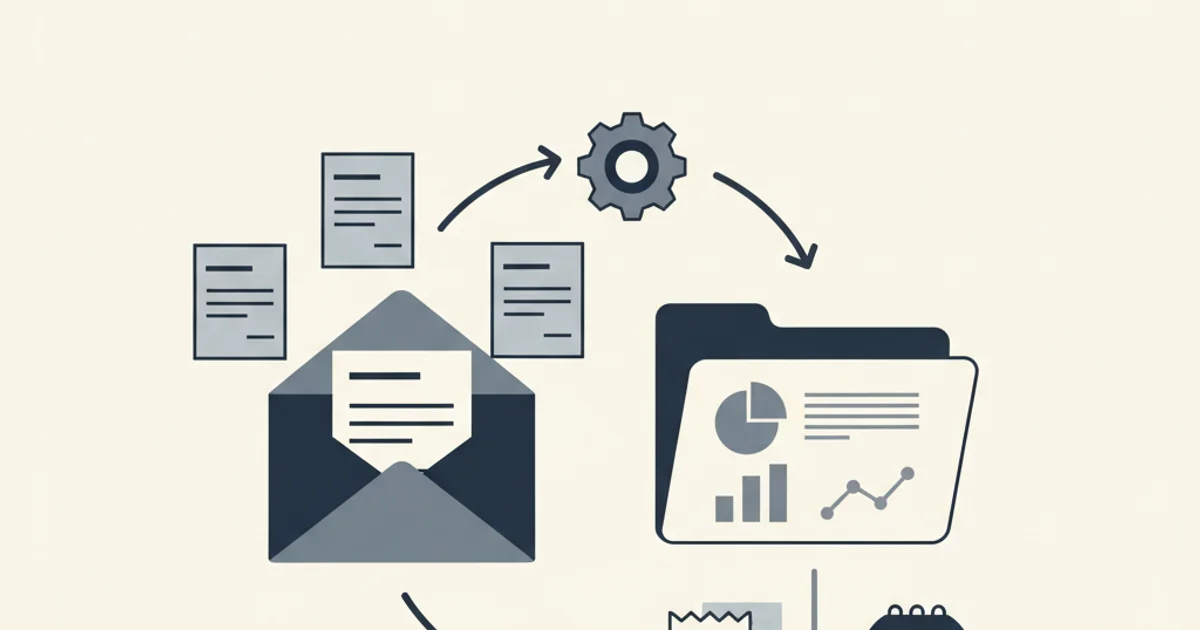
QuickBooks automation is the set of features inside QuickBooks Online that create, categorize, or route transactions without manual entry: bank feeds, bank rules, recurring transactions, receipt forwarding, and, on the Advanced plan, approval workflows. It does not find supplier invoices in your inbox, read their line items, catch non-identical duplicates, or match an invoice to a bank payment. Those steps stay manual unless a layer in front handles them.
That gap is where most small businesses lose hours. QuickBooks does the back half of bookkeeping well, once a transaction exists. The front half, from an invoice arriving in someone's inbox to a correct, deduplicated bill in the ledger, is left to you.
This guide walks the native automation features one by one, with the menu paths and plan limits as of October 2026, then draws the line where QuickBooks stops and shows the honest way to close the gap. If you want the platform-specific AP loop including payment, read AP automation for QuickBooks and Xero. If you only want emailed invoices to become bills, the three paths are in email invoices to QuickBooks automatically.
What does QuickBooks automation actually cover?
QuickBooks automation is the set of features inside QuickBooks Online that create, categorize, or route transactions without a person typing them. There are five, and they sit at different points of the bookkeeping cycle:
| Feature | What it automates | Plan | Where it stops |
|---|---|---|---|
| Bank feeds | Downloads bank and card transactions daily | All plans (Free connects one bank) | Does not know which invoice a payment settles |
| Bank rules | Assigns payee, category, class to downloaded transactions | All paid plans | Needs a transaction to exist first; rules only see the bank description |
| Recurring transactions | Creates scheduled bills, invoices, expenses, journal entries | All paid plans | Only for amounts and vendors you already know |
| Receipts (forwarding address and mobile snap) | Reads date, amount, vendor from forwarded receipts | All paid plans | Header fields only, manual review of every item |
| Workflows | Reminders, bill approval, payment release by condition | Advanced only | Runs on transactions already in QuickBooks |
The pattern is visible in the right-hand column. Every native feature operates on data that is already inside QuickBooks, or on a document a person has already forwarded. None of them go and get the invoice.
How do QuickBooks bank rules work?
Bank rules are conditions you set on downloaded bank transactions that automatically assign a payee, category, class, and location when a transaction matches. Intuit's help article on setting up bank rules describes the mechanics, and they are worth knowing precisely because rules are the automation most small businesses under-use.
- Create a rule from the Rules page (All apps, Accounting, Rules, New rule in the US layout) or from a transaction in the For review tab with the Create rule link.
- Conditions test the bank description, the amount, or both. "Description contains GOOGLE and amount is less than 500" is a typical rule for a recurring SaaS charge.
- Priority matters: the rule with the highest priority fires first, so a narrow rule for one vendor should sit above a broad rule for a category.
- Auto-add rules accept matching transactions straight into the books from the Bank transactions page, with no review. Use them for charges you trust completely, such as a fixed rent payment, and leave everything variable in review.
- Export and import rules as an Excel file to copy a mature rule set into a second company file, which is how bookkeepers standardize a new client in an afternoon.
The limit is what rules can see. A bank rule reads the bank's description string, which is often "SQ *VENDOR 8842" or "AMZN Mktp US". It cannot read the invoice behind the charge, so it cannot split a line-item bill across accounts, cannot check the amount against what the supplier invoiced, and cannot tell you the charge is a duplicate. Rules automate the posting of money that has already left. They do not automate the matching of that money to a document.
What do recurring transactions automate?
Recurring transactions are templates that create a bill, invoice, expense, or journal entry on a schedule you define. Intuit's recurring bill article covers the setup: open a bill, select Make recurring, name the template, and pick one of three types.
- Scheduled creates the transaction automatically on the date you set, with an option to email it for invoices.
- Reminder adds the transaction to a reminder list so you create it when prompted.
- Unscheduled saves the template for you to use on demand.
Recurring templates are the right tool for fixed, predictable bills: rent, a loan payment, a retainer. They are the wrong tool for anything that changes month to month, because the template posts the amount you typed, not the amount on the supplier's invoice. A recurring bill for a cloud provider will be wrong eleven months out of twelve, and the mismatch surfaces only when the bank feed shows a payment that does not match the bill. Use recurring transactions for fixed amounts and let a capture layer handle the variable ones.
How does QuickBooks receipt forwarding work?
QuickBooks receipt forwarding is a feature that gives your company a dedicated email address; any receipt or bill emailed to it is read and staged in the Receipts tab for review. The Intuit help article sets the rules as of October 2026:
- Set it up from All apps, Accounting, Receipts, then Forward from email. An admin creates the address and can grant standard users the right to forward through Manage forwarding email.
- Users must send from the email address they use to sign in to QuickBooks, so a forward from a personal or shared mailbox is dropped.
- Accepted files are PDF, JPEG, JPG, GIF, and PNG, each between 46 KB and 20 MB, with one receipt per file.
- QuickBooks pulls the date, amount, vendor, and the last four digits of the card, then places the item in the Receipts tab where you add it to an account or match it to an existing bank transaction.
Three things are missing from that list. There is no line-item extraction, so a 14-line distributor invoice becomes one total you split by hand. There is no automatic forward, so someone still has to see the invoice in their inbox and send it on, or build a Gmail or Outlook forwarding rule and hope the sender filter catches everything. And there is no duplicate check beyond the exact bill number. The detailed walk-through of this feature, with the places it drops receipts, is in QuickBooks receipt scanner.
What does QuickBooks workflow automation add on Advanced?
Workflow automation is the QuickBooks Online Advanced feature that runs reminders and approval routing based on conditions you define, such as routing any bill over a threshold to a named approver. Intuit's bill approval and payment release workflows article describes the mechanics: you open the workflows icon, go to Templates, pick the bill approval or payment release template, and set the amount or vendor conditions. Approvers act from the bill's actions menu and pending bills sit on the Bills page under Unpaid.
This is real control, and if you process bills with more than one approver it is the reason to be on Advanced. Two caveats. First, Intuit's pricing page lists "Automate workflows" only from Advanced, which also raises the user cap to 25; on Simple Start, Essentials, and Plus you manage AP through user roles, not an approve-then-pay queue. Second, a workflow runs on a bill that already exists in QuickBooks. If the bill was never entered because the invoice sat in a sales rep's inbox, no workflow fires.
Where does QuickBooks automation stop?
QuickBooks Online automation stops at the edge of the ledger: it cannot find a supplier invoice, read its lines, decide whether it is a duplicate, or confirm that a bank payment settles it. Those four steps are the manual work that remains even on a fully configured Advanced account, and they are the steps worth automating next.
Capture. Invoices arrive in whatever inbox the supplier has on file. Ad platforms email the account owner, SaaS tools email whoever signed up, a distributor emails the kitchen manager. The Receipts address only receives what a person forwards to it. Our own data on how vendors deliver invoices shows how many arrive as portal links or inline email bodies rather than clean PDF attachments, and each of those formats fails the forwarding path differently.
Extraction. QuickBooks reads header fields. Line items, tax breakdown, currency, and the bill-to entity are not extracted, which matters for any business that codes a single invoice across several accounts or classes.
Duplicate detection. QuickBooks warns on an exact duplicate bill number for the same vendor. A re-sent invoice with a suffix, the same PDF forwarded by two people, or a supplier statement that repeats earlier invoices all pass. Duplicate payments, where two bank transactions settle one bill, are invisible to the bills list entirely. The control that stops them is described in how to prevent duplicate invoice payments.
Reconciliation to the document. The bank feed match in QuickBooks pairs a bank transaction with a bill you already entered. It does not pair the transaction with the invoice PDF, so an invoice you never entered has nothing to match against and the payment lands as an uncategorized expense. The full method is in what is a bank reconciliation.
The common failure is not a missing feature. It is a bill that was never created because nobody saw the invoice. Every downstream automation in QuickBooks assumes the bill exists.
How to close the gap: automate the front of the pipeline
The fix is a layer that sits in front of QuickBooks and does the missing capture, extraction and duplicate steps before the bill posts, then matches the bills to your bank statement. Inbox Ledger connects to Gmail, Outlook or IMAP with read-only access, finds invoices and receipts, extracts the data with AI, matches them to bank statement transactions, and pushes bills to QuickBooks Online or Xero. Here is what that looks like against the gaps above, with the mechanics stated plainly so you can check them.
- Connect the inboxes where invoices actually land. Read-only OAuth for Gmail and Outlook, or IMAP for anything else, plus a forwarding address for the stragglers. Nothing is moved, labeled, or sent from the mailbox. On paid plans, invoices embedded in the email body (the Stripe, PayPal, and Shopify pattern) are captured even with no PDF attached.
- Run a retroactive scan for the backlog. Presets cover this month, last month, last quarter, the last 6 months, and the last 12 months, with a custom range up to 24 months. A scan longer than a quarter asks you to confirm first because it can use your whole credit balance at once.
- Extract every field, not just the header. Vendor, dates, currency, totals, tax, bill-to, and line items come out of each document without a per-vendor template.
- Catch duplicates on arrival. An identical file is recognized by its SHA-256 hash and never processed twice. A duplicate that is not byte-identical is caught by a two-level check on invoice number plus vendor and on a semantic fingerprint of the document, and flagged against the original.
- Push to QuickBooks as a Bill. Each processed invoice becomes a Bill with the vendor resolved (found or created), your default expense account applied, line items mapped, and the source PDF attached. Auto-push for new invoices is a toggle, and a push log shows what posted. The integration itself is documented in how to integrate with QuickBooks Online.
- Reconcile against the bank. Upload a statement as PDF, CSV, Excel, OFX, QFX, MT940, or BAI2 and the matching engine pairs transactions with invoices, with a confidence score and a plain-language explanation on each match. You confirm or reject, and unmatched transactions and unmatched invoices get their own lists. That is the control QuickBooks' bank feed cannot provide for invoices that were never entered; the mechanics are in /features/reconciliation.
QuickBooks then does the rest. Bank rules still categorize the payment, QuickBooks Bill Pay still moves the money, and the bank feed still closes the loop at period end. The layer in front simply makes sure the bill exists, is correct, and is not a duplicate before any of that runs.
A practical QuickBooks automation setup for a small business
Here is the configuration we would set up for a 15-person business with 60 to 150 supplier invoices a month and a bookkeeper who closes monthly.
| Step | Tool | Setting |
|---|---|---|
| 1 | QuickBooks bank feeds | Connect every operating and card account; review For review weekly |
| 2 | QuickBooks bank rules | Auto-add for fixed charges only (rent, loan); review rules for everything variable; priority narrow before broad |
| 3 | QuickBooks recurring transactions | Scheduled bills for fixed-amount vendors; nothing variable |
| 4 | Capture layer (Inbox Ledger) | Connect the owner's, the office manager's, and the AP inbox read-only; forwarding address shared with staff who buy |
| 5 | Capture layer | Retroactive scan of the last 12 months before the first close so the backlog is in |
| 6 | Capture layer to QuickBooks | Auto-push bills with PDF attached; default expense account set; vendor names normalized |
| 7 | Capture layer | Upload the month's bank statement, confirm matches, work the unmatched lists |
| 8 | QuickBooks | Bill Pay for payment, bank feed match, month-end reconciliation report |
Steps 1 to 3 and 8 are native QuickBooks automation. Steps 4 to 7 are the part QuickBooks leaves to you, and the part that produces most of the manual hours. If you want to see what is sitting in your inboxes before committing to any of this, the free Inbox Audit connects one inbox read-only and shows every invoice, vendor, and recurring charge from the last 12 months, with duplicates flagged.
When native QuickBooks automation is enough
Not every business needs the layer in front. If you receive fewer than about 30 supplier invoices a month, they all come from a handful of vendors you already have recurring templates for, and one person both receives and enters them, the native tooling plus disciplined bank rules will keep you current. The signals that you have outgrown it are specific: a bookkeeper asking "where is the invoice for this payment" more than a few times a month, an uncategorized expense balance that grows between closes, two payments to the same vendor for the same amount in one month, or a backlog of invoices in email that nobody has entered. Any one of those is the capture gap, and no amount of QuickBooks configuration closes it. If the tempting fix is to paste invoices into a general chatbot and build a table, ChatGPT for invoice processing covers where that works and where it breaks. If the real problem is getting the invoices to a bookkeeper at all, start with send invoices to your accountant automatically.
Frequently asked questions
Does QuickBooks Online have an API for automation?
Yes. QuickBooks Online exposes a REST API that creates Bills, Vendors, and attachments, which is how third-party capture tools post bills with the PDF attached. The developer-side details, including OAuth 2.0 and the Bill entity, are in how to integrate with QuickBooks Online.
Can I automate QuickBooks with Zapier or similar tools?
You can trigger bill creation from a form or a spreadsheet row, but a generic automation tool still needs structured data as input. It will not read an invoice PDF, extract line items, or check for duplicates, so it moves the manual work rather than removing it.
Will automation post wrong bills to my books?
Any automation can post a wrong number if nothing checks it. The protections that matter are a confidence score on each extracted field, a duplicate check before the push, and a bank match after it. A bill that fails any of those should be visible in a list, not silently posted.